Touchscreen Macs are coming: make your site easy to tap

Apple is expected to show a touchscreen MacBook Pro next week. When that happens, desktop visitors will start tapping your site with a finger, not only clicking with a mouse. The fix is simple to describe: make every button, link and menu at least 44 px to tap, leave space between them, and never hide anything behind hover.
Below I explain what breaks under a finger, and show the CSS and HTML to fix each problem. You can test your own site in about ten minutes.
Touch is coming to the Mac
Bloomberg’s Mark Gurman reports that Apple will launch a 14-inch and 16-inch MacBook Pro with an OLED touch screen at an event in Los Angeles on 28 October. 9to5Mac and MacRumors have the details. Apple hasn’t announced anything yet, so treat the date as a strong rumour. I covered it in the daily news on 19 October.
The reports say touch will work alongside the trackpad and keyboard, not instead of them. So the same visitor might click your menu one minute and poke it the next. Windows touch laptops and iPads with keyboards already work this way. The Mac is the last big laptop to join.
Why mouse-sized buttons fail under a finger
A mouse pointer is one pixel wide. A finger is not. Tiny icons that are fine for a mouse become a guessing game. It’s the TV remote problem: press one small button and your finger hits three.
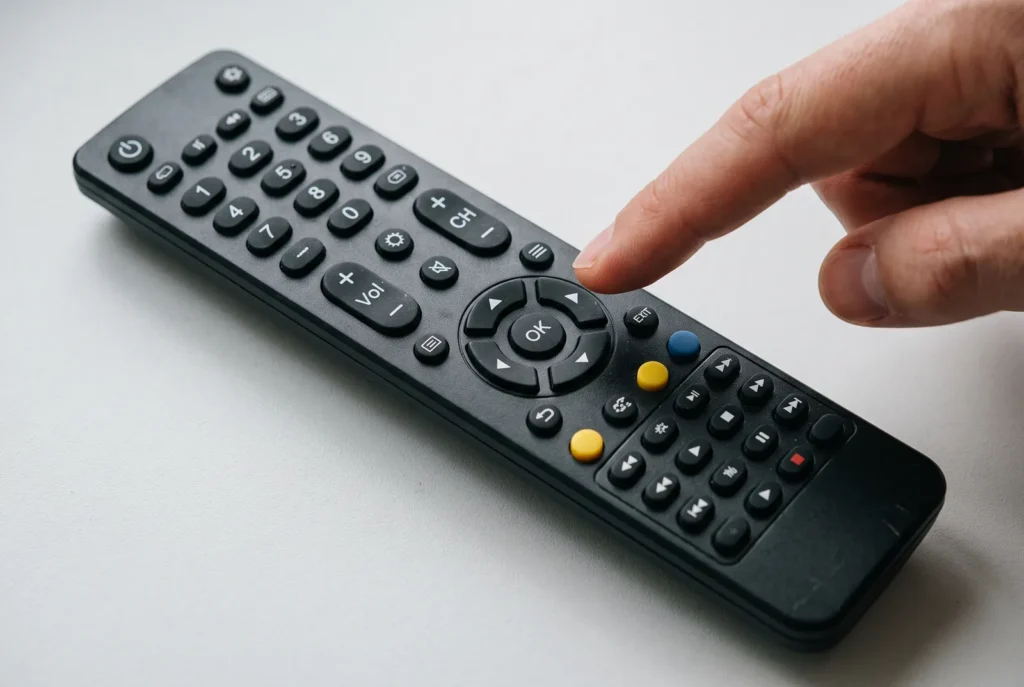
- Small targets. Cart, search and account icons are often 16 to 20 px. A finger covers the icon, so people can’t see what they’re tapping.
- No space between them. Social icons and quantity buttons packed together mean a tap hits the wrong one.
- Hover-only menus. A touch screen has no hover. If your dropdown opens only on hover, finger users can’t reach the pages inside it.
- Hover-only details. Tooltips, a second product photo on hover and “quick view” buttons that appear on hover all disappear for touch.
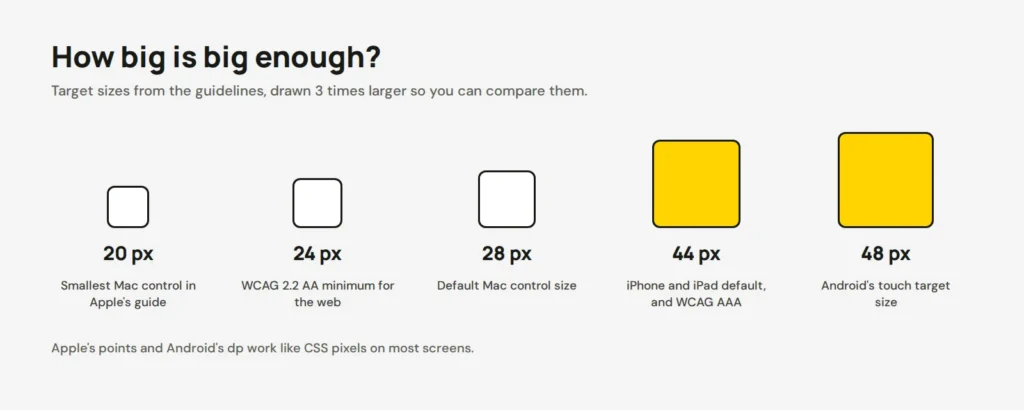
Mac apps have small controls today. Apple’s own design guidelines list 28 × 28 points as the default Mac control size, but 44 × 44 for iPhone and iPad. Expect macOS to grow its controls for touch, and plan for your site to do the same.
Make buttons and links big enough for a finger
There are three numbers worth knowing. WCAG 2.2, the web accessibility standard, asks for at least 24 × 24 CSS pixels at level AA, or enough space around smaller targets. Its stricter AAA level asks for 44 × 44. Apple uses 44 for touch, and Android recommends 48.
My rule is 44 px for anything people tap often, like menus, buttons and cart icons. Never go under 24 px. Try it below: drag the sliders and watch which rules your buttons pass. The purple circles show how WCAG measures the space between small targets.
<div class="tt">
  <p class="tabs" role="radiogroup" aria-label="Pick a test">
    <input type="radio" name="v" id="v1" checked><label for="v1">Size and spacing</label>
    <input type="radio" name="v" id="v2"><label for="v2">Hover menus</label>
  </p>
  <div class="p1">
    <label class="sl"><span>Button size <b id="os">18 px</b></span><input type="range" id="sz" min="12" max="56" value="18"></label>
    <label class="sl"><span>Space between <b id="og">4 px</b></span><input type="range" id="gp" min="0" max="24" value="4"></label>
    <label class="chk"><input type="checkbox" id="cc" checked> Show the 24 px circles WCAG checks</label>
    <div class="stage"><div class="icons" id="icons">
      <button aria-label="Search">⌕</button><button aria-label="Account">◯</button><button aria-label="Wishlist">♡</button><button aria-label="Cart">◫</button><button aria-label="Menu">≡</button>
    </div></div>
    <ul class="badges">
      <li id="b1"><b>WCAG 2.2 AA</b><span>24 px, or enough space</span></li>
      <li id="b2"><b>Apple touch</b><span>44 × 44</span></li>
      <li id="b3"><b>Android</b><span>48 × 48</span></li>
    </ul>
  </div>
  <div class="p2">
    <label class="chk fing"><input type="checkbox" id="fm"> Finger mode: switch hover off, like a touch screen</label>
    <div class="menus">
      <div class="m hov"><small>Hover-only menu</small><a href="#" class="top">Shop ▾</a><ul><li><a href="#">Mugs</a></li><li><a href="#">Linen</a></li><li><a href="#">Gifts</a></li></ul></div>
      <div class="m tap"><small>Tap-friendly menu</small><button class="top" aria-expanded="false" id="tb">Shop ▾</button><ul><li><a href="#">Mugs</a></li><li><a href="#">Linen</a></li><li><a href="#">Gifts</a></li></ul></div>
    </div>
    <p class="msg" id="msg">Try both menus with your mouse. Then turn on finger mode and try again.</p>
  </div>
</div>
body { display: block; padding: 14px; place-items: normal; }
.tt { width: min(100%, 680px); margin: 0 auto; font-size: 15px; color: #171915; }
.tabs { display: flex; flex-wrap: wrap; gap: 8px; margin: 0 0 14px; }
.tabs input { position: absolute; opacity: 0; }
.tabs label { padding: 8px 16px; border: 2px solid #171915; border-radius: 999px; background: #fff; cursor: pointer; font-weight: 700; font-size: 14px; }
.tabs input:checked + label { background: #171915; color: #fff; }
.tabs input:focus-visible + label { outline: 3px solid #5B4AE8; outline-offset: 2px; }
.p2 { display: none; }
.tt:has(#v2:checked) .p1 { display: none; }
.tt:has(#v2:checked) .p2 { display: block; }
.sl { display: block; margin: 0 0 10px; }
.sl span { display: flex; justify-content: space-between; font-size: 14px; color: #5C5E57; }
.sl b { color: #171915; }
input[type=range] { width: 100%; accent-color: #171915; margin: 4px 0 0; }
.chk { display: flex; align-items: center; gap: 8px; font-size: 14px; margin: 4px 0 12px; cursor: pointer; }
.chk input { width: 20px; height: 20px; accent-color: #171915; margin: 0; }
.stage { background: #fff; border: 2px solid #E4E4E4; border-radius: 14px; min-height: 120px; padding: 10px; box-sizing: border-box; display: grid; place-items: center; overflow: hidden; }
.icons { display: flex; flex-wrap: wrap; justify-content: center; align-items: center; }
.icons button { position: relative; padding: 0; border: 2px solid #171915; border-radius: 8px; background: #FFD400; color: #171915; cursor: pointer; line-height: 1; display: grid; place-items: center; }
.icons button::after { content: ""; position: absolute; width: 24px; height: 24px; left: 50%; top: 50%; transform: translate(-50%, -50%); border-radius: 50%; background: rgba(91, 74, 232, .18); border: 1px solid #5B4AE8; pointer-events: none; display: none; }
.tt:has(#cc:checked) .icons button::after { display: block; }
.icons.clash button::after { background: rgba(214, 40, 40, .25); border-color: #D62828; }
.badges { list-style: none; margin: 12px 0 0; padding: 0; display: grid; grid-template-columns: repeat(3, 1fr); gap: 8px; }
.badges li { border: 2px solid #D7D7D7; border-radius: 12px; padding: 8px 10px; background: #fff; }
.badges li::before { content: "✕ Too small"; display: block; font-size: 12px; font-weight: 700; color: #D62828; }
.badges li.ok { border-color: #171915; background: #FFD400; }
.badges li.ok::before { content: "✓ Passes"; color: #171915; }
.badges b { display: block; font-size: 14px; white-space: nowrap; }
.badges span { font-size: 12.5px; color: #3F413B; }
.menus { display: grid; grid-template-columns: 1fr 1fr; gap: 12px; }
.m { position: relative; background: #fff; border: 2px solid #E4E4E4; border-radius: 14px; padding: 12px 14px; min-height: 200px; }
.m small { display: block; color: #5C5E57; font-size: 12.5px; margin-bottom: 8px; }
.m .top { display: inline-flex; align-items: center; min-height: 44px; padding: 0 16px; border: 2px solid #171915; border-radius: 10px; background: #fff; font: inherit; font-weight: 700; color: #171915; text-decoration: none; cursor: pointer; }
.m ul { list-style: none; margin: 6px 0 0; padding: 4px; border: 2px solid #171915; border-radius: 10px; background: #fff; width: 150px; display: none; }
.m ul a { display: flex; align-items: center; min-height: 40px; padding: 0 10px; color: #171915; text-decoration: none; border-radius: 6px; }
.m ul a:focus-visible, .m .top:focus-visible { outline: 3px solid #5B4AE8; outline-offset: 2px; }
.tt:not(:has(#fm:checked)) .hov:hover ul { display: block; }
.tt:not(:has(#fm:checked)) .m ul a:hover { background: #F4F4F4; }
.tap.open ul { display: block; }
.msg { margin: 12px 0 0; padding: 10px 12px; border-radius: 10px; background: #fff; border: 2px solid #D7D7D7; font-size: 14px; }
@media (max-width: 560px) {
body { padding: 8px; }
.badges { grid-template-columns: 1fr; gap: 6px; }
.badges li { display: flex; align-items: baseline; gap: 8px; padding: 6px 10px; }
.badges li::before { order: 3; margin-left: auto; }
.menus { grid-template-columns: 1fr 1fr; gap: 8px; }
.m { padding: 10px; }
.m ul { width: auto; }
}var $ = function (id) { return document.getElementById(id); };
function upd() {
var s = +$('sz').value, g = +$('gp').value, box = $('icons');
$('os').textContent = s + ' px'; $('og').textContent = g + ' px';
box.style.gap = g + 'px';
box.querySelectorAll('button').forEach(function (b) { b.style.width = b.style.height = s + 'px'; b.style.fontSize = Math.round(s * 0.6) + 'px'; });
var aa = s >= 24 || s + g >= 24; // WCAG spacing rule: 24 px circles on centres don't touch
box.classList.toggle('clash', !aa);
$('b1').classList.toggle('ok', aa); $('b2').classList.toggle('ok', s >= 44); $('b3').classList.toggle('ok', s >= 48);
}
['sz', 'gp'].forEach(function (id) { $(id).addEventListener('input', upd); });
upd();
var tap = document.querySelector('.tap');
$('tb').addEventListener('click', function () {
var open = tap.classList.toggle('open');
this.setAttribute('aria-expanded', open);
$('msg').textContent = open ? 'The tap-friendly menu opens on a click or a tap. It works with a mouse, a finger and the keyboard.' : 'Closed. Tap it again to open.';
});
document.querySelector('.hov .top').addEventListener('click', function (e) {
e.preventDefault();
$('msg').textContent = $('fm').checked ? 'Nothing opens. On a touch screen, this menu is a dead end, and visitors can\'t reach Mugs, Linen or Gifts.' : 'With a mouse you never needed to click. The menu opened on hover.';
});
document.querySelectorAll('.m ul a').forEach(function (a) { a.addEventListener('click', function (e) { e.preventDefault(); $('msg').textContent = 'You picked ' + a.textContent + '.'; }); });
$('fm').addEventListener('change', function () { $('msg').textContent = this.checked ? 'Finger mode is on. Now tap the hover-only menu.' : 'Hover is back on.'; });The easiest fix is a minimum size on all your controls. The visible icon can stay small, while the tappable area grows:
.site-header a,
.site-header button,
.button {
  min-width: 44px;
  min-height: 44px;
  display: inline-flex;
  align-items: center;
  justify-content: center;
  padding: 0 12px;
}

/* Space between neighbours, so a tap doesn't hit the wrong one */
.social-links,
.quantity {
  display: flex;
  gap: 8px;
}
If a bigger button would break your design, make the hit area bigger without changing how it looks. This invisible layer catches taps around the icon:
.icon-button { position: relative; }
.icon-button::after {
  content: "";
  position: absolute;
  inset: -12px; /* grows the tappable area by 12 px on every side */
}
Be careful that two of these invisible areas don’t overlap, or the second button will win every tap. That’s the computer doing exactly what you told it, which is the worst kind of bug.
Fix menus and anything that needs hover
A hover-only menu on a touch screen is like a shop sign that only appears when you wave at it. Give every dropdown a real button that opens it on a tap or a click. Keep hover as a bonus for mouse users.
<li class="has-sub">
  <a href="/shop/">Shop</a>
  <button class="sub-toggle" aria-expanded="false" aria-label="Show the Shop menu">▾</button>
  <ul class="sub-menu">
    <li><a href="/shop/mugs/">Mugs</a></li>
    <li><a href="/shop/linen/">Linen</a></li>
  </ul>
</li>
document.querySelectorAll('.sub-toggle').forEach(function (button) {
button.addEventListener('click', function () {
var open = button.getAttribute('aria-expanded') !== 'true';
button.setAttribute('aria-expanded', open);
});
});.sub-menu { display: none; }
.sub-toggle[aria-expanded="true"] + .sub-menu,
.has-sub:focus-within .sub-menu { display: block; }
/* Hover only where a real mouse or trackpad exists */
@media (hover: hover) {
.has-sub:hover .sub-menu { display: block; }
}The aria-expanded attribute tells screen readers whether the menu is open, so this fix helps keyboard and screen reader users too. Most good WordPress themes and Shopify themes already work this way. Older ones, and many page builder menus, don’t.
Do the same for other hover tricks. Wrap hover effects in @media (hover: hover), so they don’t get “stuck” after a tap. And make sure any information in a tooltip or a hover image is also reachable with a tap.
Plan for a mouse and a finger on the same laptop
Don’t try to guess the device. A “desktop” can have a touch screen, and an iPad can have a trackpad. CSS can tell you what’s available instead. The any-pointer media query checks every input the device has. If any of them is a finger, it matches coarse:
/* At least one input is a finger: give it more room */
@media (any-pointer: coarse) {
  .site-nav a { min-height: 48px; }
  .quantity button { width: 44px; height: 44px; }
}- Use click, not mouseover, in JavaScript. A click fires for a mouse, a tap and the Enter key. For dragging, like sliders or image comparisons, use pointer events (
pointerdown,pointermove), which work for mouse, finger and pen. - Let people zoom. Remove
maximum-scale=1anduser-scalable=nofrom your viewport meta tag. Zoom is how many people cope with small text and small buttons. - Keep swipe gestures optional. A carousel needs arrow buttons too, because a mouse can’t swipe.
Check your site in ten minutes
Open your home page, product page and checkout in Chrome. Press F12 (or Cmd + Option + I on a Mac), click the Console tab, paste this and press Enter. It outlines every link and button smaller than 24 px in red:
document.querySelectorAll('a, button, input, select, textarea, [role="button"]').forEach(function (el) {
  var r = el.getBoundingClientRect();
  if (r.width && r.height && (r.width < 24 || r.height < 24)) {
    el.style.outline = '3px solid red';
    console.log('Too small:', Math.round(r.width) + 'x' + Math.round(r.height), el);
  }
});
Here’s what it found on a made-up shop header:
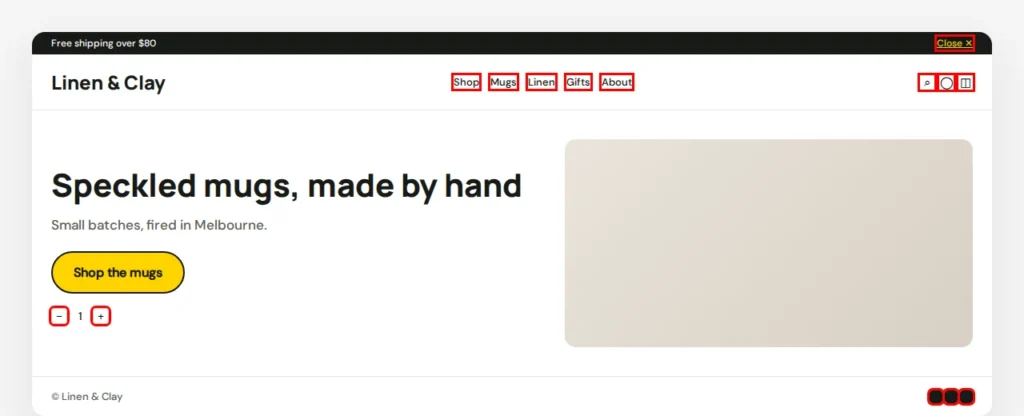
Links inside a sentence are allowed to be smaller, so ignore those. Everything else in red needs work. Then do these checks:
- Turn on the device toolbar in Chrome DevTools (Cmd + Shift + M on a Mac, Ctrl + Shift + M on Windows) and pick a tablet. Try every menu with clicks only, no hover.
- Open your site on a real iPad or a touch laptop, and use only your finger. Buy something, if it’s a shop.
- Run the free axe DevTools browser extension. Its target-size rule flags small targets for you.
On WordPress, you can add the CSS in Appearance → Customize → Additional CSS, or in your child theme. On Shopify, open the theme editor and use the Custom CSS field in Theme settings. Bigger buttons also help older visitors and anyone using a phone on the train. If you’d like us to check and fix your site for touch, our site updates service covers it.
Opens in a new tab


Comments
No comments yet. Questions, fixes and better ways are all welcome.