Guide 04 GrowSite upgrades
How to speed up a slow WordPress site
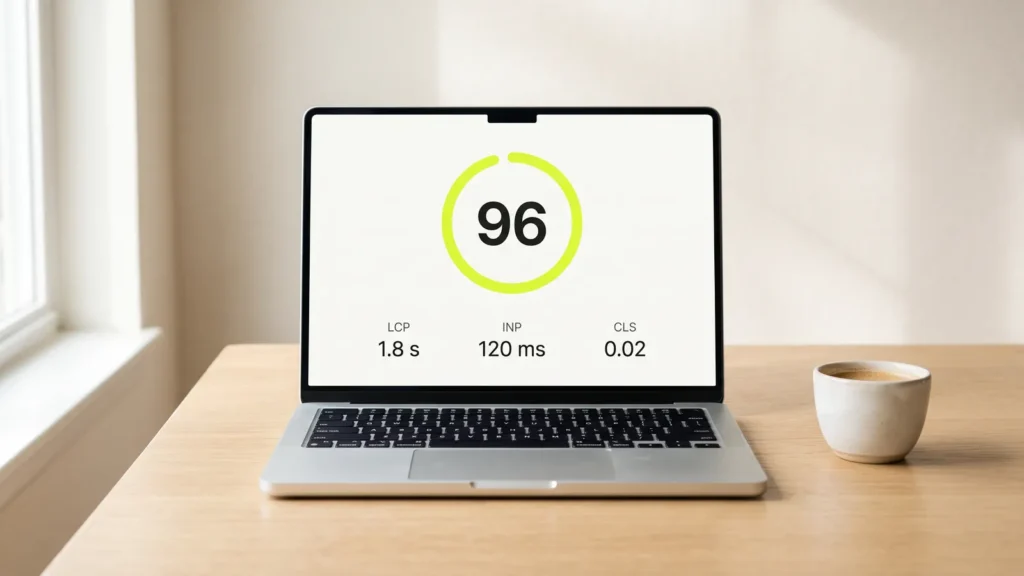
Most slow WordPress sites have the same two problems. They run too many plugins, and their images are far too big. Fix those two, add caching and a CDN, and most sites feel fast again.
By the end of this guide you’ll have a lighter, faster site and a way to prove it. Plan on an afternoon. Most of the tools are free. The one I pay for is WP Rocket, a caching plugin. At the time of writing it costs US$59.95 a year for one site.
Before you change anything, make a full backup. I wouldn’t touch plugins on a live site without one.
Measure first, so you know what changed
Open PageSpeed Insights and test two pages. Use your home page and the page that earns you money, like a product or booking page. Write down the scores for mobile.
The report shows two kinds of results. “Lab data” is a test Google runs right now. “Field data” comes from real Chrome visitors over the previous 28 days. The number I look at first is LCP, the time until the main content appears. Good is 2.5 seconds or less.
If the terms are new, my post on Core Web Vitals in plain English explains all three. Keep your notes somewhere safe. Future you will want proof that the afternoon was worth it.
Clear out the plugins you don’t need
Go to Plugins → Installed Plugins and look at each one. Ask two questions. Do I still use this? Does another plugin already do the same job?
- Delete the plugins you don’t use. A deactivated plugin doesn’t slow the site, but it still needs updates and can still be a security risk.
- Replace two or three small plugins with one that does all of it, where you can.
- Be wary of plugins that add things to every page, like sliders, pop-ups and chat widgets.
The number of plugins matters less than how well they are built. WPBeginner runs more than 60 plugins. In its words, “the problem is not the quantity of plugins, but rather the quality.” One badly built plugin can slow every page on its own.
To find that one, install Query Monitor. It shows the database queries on each page, grouped by the plugin that made them. The plugin at the top of the list is where I’d start. You can also switch plugins off one at a time on a staging site (a private copy of your site) and test again.
Shrink your images before they reach the page
A photo from a modern phone is often 4,000 pixels wide and several megabytes. Your page might show it at 1,200 pixels. Every visitor still downloads the whole thing. It’s like posting someone a full-size poster when they asked for a postcard.
- Resize photos before you upload them. Around 2,000 pixels wide is plenty for a full-width banner, and most other images can be smaller. WordPress scales down anything over 2,560 pixels, but that is still big.
- Save them as WebP or AVIF instead of JPEG or PNG. WordPress has supported AVIF since version 6.5. The WordPress team says “AVIF images can be up to 50% smaller than JPEGs while maintaining the same image quality.” To check your server supports it, go to Tools → Site Health → Info → Media Handling.
- For the images already in your media library, use an image optimisation plugin. It compresses and converts them in bulk. WP Rocket doesn’t compress images itself, so you need a separate tool for this.
WordPress already lazy loads images, which means it waits to load them until the visitor scrolls near them. So you don’t need a plugin for that part.
Turn on caching and add a CDN
Every time someone visits, WordPress builds the page from scratch. It runs PHP code, asks the database for the content, and then puts the page together. Caching saves the finished page and hands out that copy instead. It’s like printing a menu once instead of writing one by hand for every customer.
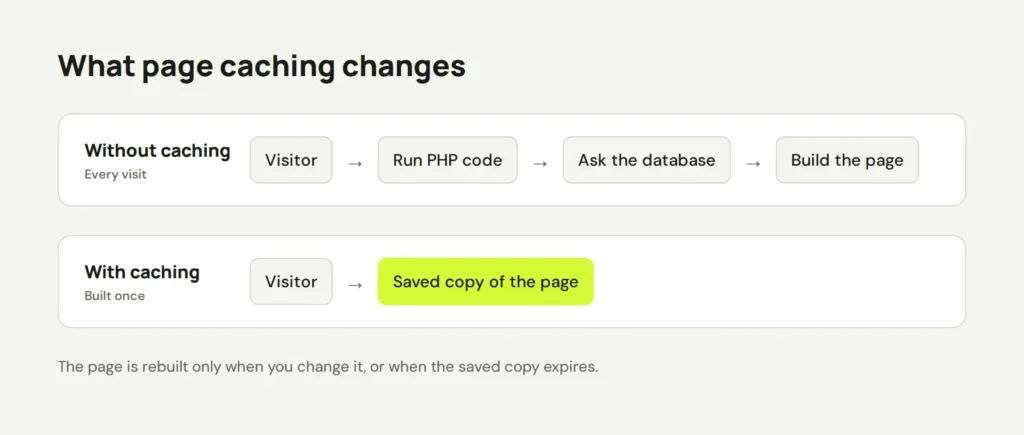
Check with your host first. Many managed WordPress hosts already cache pages for you, and two caching plugins will fight each other. If your host doesn’t cache, this is where WP Rocket earns its price. Once you activate it, page caching, browser caching and GZIP compression are already on. There is nothing to set.
A CDN (content delivery network) is a group of servers around the world that keep copies of your images and files. Visitors get them from the server nearest to them. If your host and your customers are both in Australia, the gain is smaller. If your host is overseas, it can make a big difference.
The Cloudflare free plan includes a CDN and costs nothing. Setting it up means changing your domain’s nameservers, so ask your host or developer if that sounds unfamiliar. WP Rocket also sells its own CDN, called RocketCDN, as a paid add-on.
Minify your CSS and JavaScript
CSS files control how your site looks, and JavaScript files make things move and react. They are written for humans, so they are full of spaces, line breaks and comments. Browsers don’t need any of that. Minifying removes it, so the files are smaller and download faster.
In WP Rocket, go to Settings → WP Rocket → File Optimization. Minifying CSS and JavaScript is already on when you install it. Two more options make a bigger difference, but you have to turn them on yourself:
- Remove unused CSS loads only the styles each page needs.
- Delay JavaScript execution waits to run scripts until the visitor moves, taps or scrolls.
Be careful here. These two can break menus, sliders, forms and checkouts. Turn on one at a time. After each one, open the site in a private window and test the menu, a form and the checkout. If something breaks, turn the option off and it goes back to normal.
Check the results
Run PageSpeed Insights again on the same two pages and compare them with your notes. The lab scores change straight away. The field data can take up to 28 days to catch up, because it’s based on real visits.
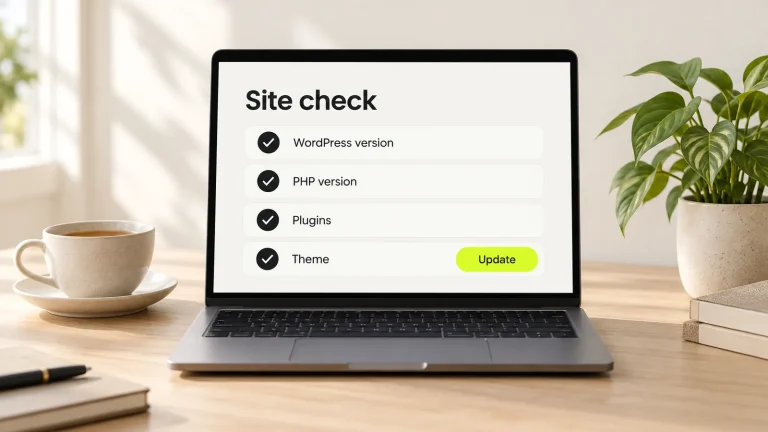
Then use the site on your own phone, on mobile data. Load a few pages, send yourself a test enquiry and add something to the cart. A fast site that can’t take an order is not an upgrade. An old theme or PHP version can slow things down too, so it’s worth running through my 10-minute check for an out-of-date website as well.
If you’d rather not do this yourself, Riksi can clean up and set up your site through our site updates service. Either way, start with the plugins and the images. That’s where most of the speed is hiding.
Opens in a new tab

Comments
No comments yet. Questions, fixes and better ways are all welcome.