A password on its own is no longer enough to keep your email, bank or website safe. Turn on two-factor authentication (2FA) everywhere you can, and use a passkey where a site offers one. That one change blocks most account takeovers.
Below I explain SFA, 2FA, MFA and passkeys in plain words. Then I show how to turn them on for your WordPress or Shopify site. You will also see where to save everything, and what to do if you get locked out.
SFA, 2FA, MFA and passkeys in plain words
Every login asks you to prove who you are. There are three kinds of proof. Something you know, like a password. Something you have, like your phone. And something you are, like your fingerprint.
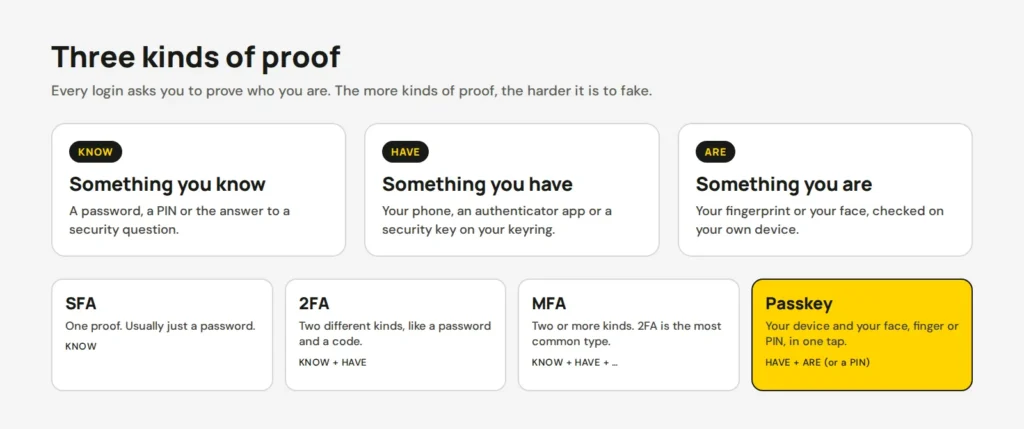
- SFA (single-factor authentication) uses one proof, usually just a password.
- 2FA (two-factor authentication) asks for two different kinds, like your password and a code from your phone.
- MFA (multi-factor authentication) means two or more kinds. 2FA is the most common type of MFA, so people often use the two names for the same thing.
- A passkey replaces the password. Your phone or computer holds a secret key, and you open it with your face, fingerprint or PIN.
Think of a bank branch. Showing your card is SFA. Showing your card and signing for it is 2FA. A passkey is like the bank knowing your face, and only opening the door at the real bank.
Why one password isn’t enough any more
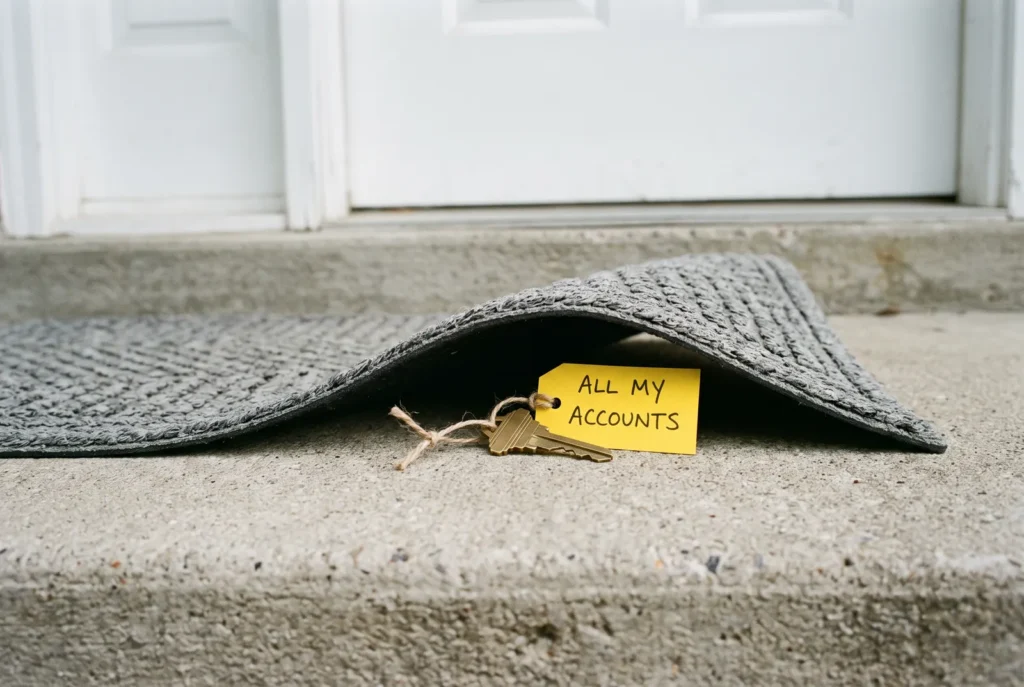
Passwords leak. Shops and apps get hacked, and lists of emails and passwords end up for sale. If you use the same password in several places, one leak opens all of them. It’s like hiding one spare key under the doormat for your house, car and office.
This is not a rare problem. The Australian Signals Directorate says 42% of the incidents reported to it in 2024–25 involved stolen accounts or logins. Its advice is clear: “passwords alone are no longer enough“.
The good news is that a second step works very well. In a Microsoft study, MFA cut the risk of an account being taken over by 99.22%. Not every method is equally strong, though. Pick a threat below and see which login methods hold up:
<div class="cmp">
  <p class="tabs" role="radiogroup" aria-label="Pick a view">
    <input type="radio" name="v" id="v1" checked><label for="v1">Pick a threat</label>
    <input type="radio" name="v" id="v2"><label for="v2">Real numbers</label>
  </p>
  <div class="p1">
    <p class="chips" role="radiogroup" aria-label="Threat">
      <input type="radio" name="t" id="t1" checked><label for="t1">Your password leaks</label>
      <input type="radio" name="t" id="t2"><label for="t2">A fake login page</label>
      <input type="radio" name="t" id="t3"><label for="t3">Someone steals your number</label>
      <input type="radio" name="t" id="t4"><label for="t4">You lose your phone</label>
    </p>
    <ul class="rows">
      <li><b>Password only</b><small>SFA</small>
        <span class="v bad x1">Exposed</span><em class="x1">They have everything they need.</em>
        <span class="v bad x2">Exposed</span><em class="x2">You type it straight into their page.</em>
        <span class="v meh x3">Risky</span><em class="x3">Many sites reset passwords by text message.</em>
        <span class="v ok x4">Fine</span><em class="x4">Nothing to lose. The only win for passwords.</em></li>
      <li><b>Password + text code</b><small>2FA</small>
        <span class="v ok x1">Safe</span><em class="x1">They also need the code sent to your phone.</em>
        <span class="v meh x2">Risky</span><em class="x2">The fake page can ask for the code too.</em>
        <span class="v bad x3">Exposed</span><em class="x3">The codes now go to their phone.</em>
        <span class="v meh x4">Risky</span><em class="x4">Get a new SIM with the same number first.</em></li>
      <li><b>Password + app code</b><small>2FA / MFA</small>
        <span class="v ok x1">Safe</span><em class="x1">The code changes every 30 seconds.</em>
        <span class="v meh x2">Risky</span><em class="x2">You can still be tricked into typing it.</em>
        <span class="v ok x3">Safe</span><em class="x3">Codes live in the app, not on your number.</em>
        <span class="v meh x4">Risky</span><em class="x4">Use backup codes or the app's cloud backup.</em></li>
      <li class="pk"><b>Passkey</b><small>Phishing-resistant</small>
        <span class="v ok x1">Safe</span><em class="x1">There is no password to leak.</em>
        <span class="v ok x2">Safe</span><em class="x2">It only works on the real site's address.</em>
        <span class="v ok x3">Safe</span><em class="x3">Your phone number plays no part.</em>
        <span class="v ok x4">Fine</span><em class="x4">Synced passkeys come back on your new phone.</em></li>
    </ul>
  </div>
  <div class="p2">
    <p class="chips" role="radiogroup" aria-label="Attack type">
      <input type="radio" name="a" id="a1" checked><label for="a1">Mass phishing emails</label>
      <input type="radio" name="a" id="a2"><label for="a2">Targeted attacks</label>
    </p>
    <ul class="bars g1">
      <li style="--v:10"><b>Security questions only</b><i></i><span>~10%</span></li>
      <li style="--v:96"><b>Text message code</b><i></i><span>96%</span></li>
      <li style="--v:99" class="hi"><b>Prompt on your phone</b><i></i><span>99%</span></li>
    </ul>
    <ul class="bars g2">
      <li style="--v:76"><b>Text message code</b><i></i><span>76%</span></li>
      <li style="--v:90"><b>Prompt on your phone</b><i></i><span>90%</span></li>
      <li style="--v:100" class="hi"><b>Security key (like a passkey)</b><i></i><span>100%</span></li>
    </ul>
    <p class="src">Share of account takeover attempts stopped, from Google's study of real attacks. For security keys, Google found no user who used only a key fell for targeted phishing.</p>
  </div>
</div>
body { display: block; padding: 14px; place-items: normal; }
.cmp { width: min(100%, 680px); margin: 0 auto; font-size: 15px; color: #171915; }
.tabs, .chips { display: flex; flex-wrap: wrap; gap: 8px; margin: 0 0 12px; }
.tabs input, .chips input { position: absolute; opacity: 0; }
.tabs label { padding: 8px 16px; border: 2px solid #171915; border-radius: 999px; background: #fff; cursor: pointer; font-weight: 700; font-size: 14px; }
.tabs input:checked + label { background: #171915; color: #fff; }
.chips label { padding: 6px 12px; border: 2px solid #D7D7D7; border-radius: 999px; background: #fff; cursor: pointer; font-size: 14px; }
.chips input:checked + label { border-color: #171915; background: #FFD400; }
input:focus-visible + label { outline: 3px solid #5B4AE8; outline-offset: 2px; }
.p2, .bars.g2 { display: none; }
.cmp:has(#v2:checked) .p1 { display: none; }
.cmp:has(#v2:checked) .p2 { display: block; }
.rows { list-style: none; margin: 0; padding: 0; display: grid; gap: 8px; }
.rows li { display: grid; grid-template-columns: 190px 84px 1fr; align-items: center; gap: 2px 12px; background: #fff; border: 2px solid #E4E4E4; border-radius: 12px; padding: 10px 14px; }
.rows li.pk { border-color: #171915; }
.rows b { grid-column: 1; grid-row: 1; font-weight: 700; }
.rows small { grid-column: 1; grid-row: 2; color: #5C5E57; font-size: 12px; }
.rows .v { grid-column: 2; grid-row: 1 / 3; justify-self: start; padding: 3px 10px; border-radius: 999px; font-weight: 700; font-size: 13px; display: none; }
.rows em { grid-column: 3; grid-row: 1 / 3; font-style: normal; color: #3F413B; display: none; }
.ok { background: #FFD400; } .meh { background: #E4E4E4; } .bad { background: #171915; color: #fff; }
.cmp:has(#t1:checked) .x1, .cmp:has(#t2:checked) .x2, .cmp:has(#t3:checked) .x3, .cmp:has(#t4:checked) .x4 { display: block; }
.bars { list-style: none; margin: 4px 0 0; padding: 0; display: grid; gap: 12px; }
.cmp:has(#a2:checked) .g1 { display: none; }
.cmp:has(#a2:checked) .bars.g2 { display: grid; }
.bars li { display: grid; grid-template-columns: 1fr 52px; gap: 4px 10px; align-items: center; }
.bars b { grid-column: 1 / -1; font-weight: 500; font-size: 14px; color: #5C5E57; }
.bars i { height: 24px; border-radius: 6px; background: #D7D7D7; width: calc(var(--v) * 1%); animation: grow .6s ease-out; }
.bars li.hi i { background: #FFD400; box-shadow: inset 0 0 0 2px #171915; }
.bars span { font-weight: 700; text-align: right; }
@keyframes grow { from { width: 0; } }
.src { margin: 14px 0 0; font-size: 12.5px; color: #5C5E57; }
@media (max-width: 560px) {
.rows small { display: none; }
.rows { gap: 6px; }
.tabs label { padding: 6px 12px; }
body { padding: 8px; }
.rows li { grid-template-columns: 1fr auto; padding: 8px 10px; }
.rows .v { grid-column: 2; grid-row: 1 / 3; }
.rows em { grid-column: 1 / -1; grid-row: 3; font-size: 13.5px; margin-top: 4px; }
.chips label { font-size: 13px; padding: 5px 10px; }
}
@media (prefers-reduced-motion: reduce) { .bars i { animation: none; } }Text message codes are better than nothing, but they have two weak spots. A fake login page can ask you for the code. And a criminal can talk your phone company into moving your number to their SIM card. App codes fix the second problem. Passkeys fix both, because your device will only use a passkey on the real site’s address.
Turn on 2FA or passkeys for your own site
Your website’s admin login is the front door to your business, so lock it first. Every admin, editor and shop manager should have their own login with 2FA turned on.
WordPress and WooCommerce
I use the free Two Factor plugin, built by WordPress community contributors and used on more than 100,000 sites. It supports authenticator apps, email codes and backup codes.
- Go to Plugins → Add New, search for “Two Factor”, then install and activate it.
- Open Users → Profile and scroll to Two-Factor Options.
- Tick Authenticator App. Scan the QR code with your authenticator app, then type the 6-digit code it shows.
- Tick Backup Verification Codes and click to generate them. You get 10 codes, and each one works once. Save them now (see below).
- Choose the authenticator app as your primary method and click Update Profile.
- Log out and log back in, to check it works before you close the tab.
Want passkeys too? Add the WebAuthn Provider for Two Factor plugin. It lets you log in with Touch ID, Windows Hello or a security key. It needs PHP 8.2 or newer, so check that with your host first.
Shopify
Shopify has 2FA built in, so you don’t need an app. Shopify calls it “two-step authentication”.
- In the Shopify admin, click your store name, then your profile, then Security.
- In the Two-step authentication section, choose an authenticator app, a security key or Shopify mobile prompts.
- Follow the steps, then click Add another method to set up a backup.
- Save your recovery codes in more than one place, as Shopify suggests.
Shopify no longer lets you set up text messages as a new method, which tells you what it thinks of them. If you share your shop with staff, my guide to sharing store logins safely shows how to give each person their own account.
Where to save passwords, codes and passkeys
You need two tools. A password manager makes and remembers a long, different password for every site. An authenticator app shows the 6-digit codes that change every 30 seconds. Some apps do both, and most password managers now save passkeys too.
When you save a new login, let the password manager create the password. Make it at least 15 characters. That’s the minimum NIST, the US standards body, now asks for when a password is the only thing protecting an account. You never need to remember it, so make it long and ugly.
| App | Price | Saves passkeys | Saves 2FA codes | Best for |
|---|---|---|---|---|
| Bitwarden | Free, or $19.80 USD a year for Premium | Yes, on the free plan | With Premium, or in the free Bitwarden Authenticator app | Most people, on any device |
| 1Password | $47.88 USD a year | Yes | Yes | Families and teams who want the most polished app |
| Apple Passwords | Free | Yes | Yes | People who only use iPhone, iPad and Mac |
| Google Password Manager | Free | Yes | No, use Google Authenticator | Android and Chrome users |
| Google Authenticator | Free | No | Yes, with backup to your Google Account | A plain authenticator app |
| Microsoft Authenticator | Free | Work and school passkeys only | Yes | Microsoft 365 work accounts |
Prices are at the time of writing, from Bitwarden and 9to5Google. Microsoft Authenticator stopped saving passwords in 2025, according to Microsoft, so don’t pick it as a password manager.
My pick for most people is Bitwarden. The free plan works on Windows, Mac, iPhone and Android, and it saves passkeys. Add the free Bitwarden Authenticator app for your 2FA codes. If your whole family lives on Apple devices, the built-in Passwords app is a fine free choice. Whichever you pick, protect the password manager itself with a long passphrase and 2FA. It holds every key you own, so it deserves the best lock.
What to do if you lose your phone or your details
The best time to plan for this is today, while everything works. Locked-out people never say, “I’m glad I didn’t print those codes.”
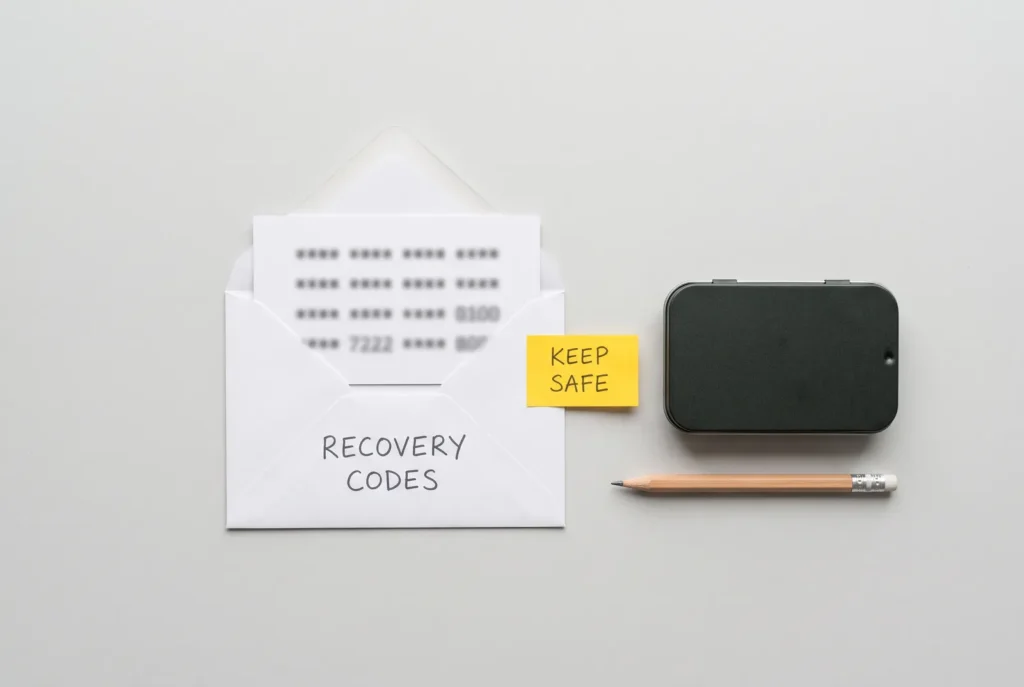
- Save your recovery codes. Most sites give you backup codes when you turn on 2FA. Print them and keep a copy in your password manager. Never keep the only copy on the phone they protect.
- Add a backup method. Add a second phone, a security key or a passkey on your laptop. Then one lost device doesn’t lock you out.
- Turn on backup for your codes. Google Authenticator can back up codes to your Google Account. Passkeys in Apple Passwords, Google Password Manager and Bitwarden sync to your new device when you sign in.
- Moving to a new phone? Move your authenticator app to the new phone before you reset the old one. The ACSC’s MFA guide gives the same advice.
And if it has already happened:
- Lost your phone: log in with a recovery code, or with your backup method. Then remove the old phone from your account and set up 2FA again on the new one.
- Locked out of WordPress: ask another admin to turn off 2FA on your profile. If you’re the only admin, rename the
wp-content/plugins/two-factorfolder in your hosting file manager. That switches the plugin off. Log in, rename the folder back, and set up 2FA again straight away. - Locked out of Shopify: use a recovery code. If you have none left, contact Shopify Support, and expect them to check who you are first.
- Forgot your password manager’s main password: Bitwarden and 1Password can’t reset it for you, because they can’t read your vault. That’s the point, but it also means your printed recovery kit or emergency contact is your only way back in.
Start with three accounts this week: your email, your website admin and your bank. Email comes first, because it can reset everything else. If you’d like us to set up 2FA and passkeys on your WordPress or Shopify site, our site updates service covers it.
Opens in a new tab


Comments
No comments yet. Questions, fixes and better ways are all welcome.