
For most small sites, the best place for images is still your own web server, with Cloudflare’s free plan in front. Once your images grow into hundreds of gigabytes, or get downloaded a lot, move them to Cloudflare R2. It charges nothing for downloads, while Amazon S3 charges for every gigabyte that leaves it.
Below I compare the options with real prices and show the bill for three kinds of sites. Then I set up R2 on WordPress, step by step.
Three places your images can live
By default, WordPress keeps every image in wp-content/uploads on your web server. The other choice is object storage, which is a big online folder for files. You pay for the space, the requests and, with some providers, every download.
That last part is called egress, and it’s where image bills grow. On S3, the first 100 GB of downloads each month are free, then it’s $0.09 per GB. R2 doesn’t charge for downloads at all.
| Your own server | Amazon S3 | Cloudflare R2 | |
|---|---|---|---|
| Storage | Part of your hosting plan | $0.023 per GB a month | $0.015 per GB a month |
| Downloads (egress) | Part of your hosting plan | $0.09 per GB after the first 100 GB | Free |
| Reading files | Free | $0.0004 per 1,000 requests | $0.36 per million, after 10 million free |
| Free every month | Whatever your plan includes | 100 GB of downloads | 10 GB of storage and 10 million reads |
| Best for | Small sites and blogs | Sites already built on AWS | Big or busy image libraries |
Prices are in US dollars, at the time of writing, from the official R2 pricing page and the S3 rates for the US East region. S3 usually sits behind Amazon’s CDN, CloudFront, which has its own free allowance. So a real S3 bill depends on how it’s set up.
What it costs for a photographer, a shop and a blog
Numbers make this easier. Pick a site below and compare one month of storage and traffic.
<div class="pk">
  <p class="tabs" role="radiogroup" aria-label="Pick a site">
    <input type="radio" name="t" id="t1" checked><label for="t1">Photographer</label>
    <input type="radio" name="t" id="t2"><label for="t2">Online shop</label>
    <input type="radio" name="t" id="t3"><label for="t3">Blog</label>
  </p>
  <p class="use"></p>
  <ul class="bars">
    <li class="b-s3"><b>Amazon S3</b><i></i><span></span></li>
    <li class="b-r2"><b>Cloudflare R2</b><i></i><span></span></li>
    <li class="b-self"><b>Your own server</b><i></i><span></span></li>
  </ul>
  <p class="pick"></p>
  <small class="note">Storage and traffic only, per month, in US dollars. S3 is shown without a CDN in front.</small>
</div>
.pk { width: min(100%, 620px); }
.tabs { display: flex; flex-wrap: wrap; gap: 8px; margin: 0 0 12px; }
.tabs input { position: absolute; opacity: 0; }
.tabs label { padding: 8px 16px; border: 2px solid #171915; border-radius: 999px; background: #fff; cursor: pointer; font-size: 15px; }
.tabs input:checked + label { background: #171915; color: #fff; }
.tabs input:focus-visible + label { outline: 3px solid #5B4AE8; outline-offset: 2px; }
.use { margin: 0 0 12px; padding: 10px 14px; background: #fff; border: 2px solid #D7D7D7; border-radius: 12px; font-size: 14px; color: #5C5E57; }
.bars { list-style: none; margin: 0; padding: 0; display: grid; gap: 8px; }
.bars li { display: grid; grid-template-columns: 130px 1fr auto; align-items: center; gap: 10px; font-size: 14px; }
.bars i { height: 18px; border-radius: 6px; background: #C6C6C6; width: var(--w); transition: width .5s cubic-bezier(.22, 1, .36, 1); }
.b-r2 i { background: #FFD400; }
.bars span { font: 700 14px "Space Mono", monospace; min-width: 70px; text-align: right; }
.pick { margin: 14px 0 6px; padding: 12px 14px; border-radius: 12px; background: #171915; color: #fff; font-size: 15px; }
.pick::before { content: "My pick: "; color: #FFD400; font-weight: 700; }
.note { color: #5C5E57; font-size: 12px; }
/* Photographer: 200 GB of photos, 500 GB of downloads a month */
.use::after { content: "200 GB of full-size photos, 500 GB downloaded a month (portfolio and client galleries)"; }
.b-s3 { --w: 100%; } .b-s3 span::after { content: "$41.40"; }
.b-r2 { --w: 7%; } .b-r2 span::after { content: "$2.85"; }
.b-self { --w: 2%; } .b-self span::after { content: "big disk"; }
.pick::after { content: "R2. Downloads are free, so busy galleries never get a surprise bill."; }
/* Online shop: 20 GB, 300 GB of traffic, 10 million image views */
.pk:has(#t2:checked) .use::after { content: "20 GB of product photos, 300 GB of traffic and 10 million image views a month"; }
.pk:has(#t2:checked) .b-s3 { --w: 54%; } .pk:has(#t2:checked) .b-s3 span::after { content: "$22.46"; }
.pk:has(#t2:checked) .b-r2 { --w: 2%; } .pk:has(#t2:checked) .b-r2 span::after { content: "$0.15"; }
.pk:has(#t2:checked) .b-self { --w: 2%; } .pk:has(#t2:checked) .b-self span::after { content: "included"; }
.pk:has(#t2:checked) .pick::after { content: "R2 once the shop grows. Until then, your own server with Cloudflare in front is fine."; }
/* Blog: 3 GB, 50 GB of traffic */
.pk:has(#t3:checked) .use::after { content: "3 GB of images, 50 GB of traffic and 1 million image views a month"; }
.pk:has(#t3:checked) .b-s3 { --w: 3%; } .pk:has(#t3:checked) .b-s3 span::after { content: "$0.47"; }
.pk:has(#t3:checked) .b-r2 { --w: 1%; } .pk:has(#t3:checked) .b-r2 span::after { content: "$0.00"; }
.pk:has(#t3:checked) .b-self { --w: 1%; } .pk:has(#t3:checked) .b-self span::after { content: "included"; }
.pk:has(#t3:checked) .pick::after { content: "Keep images on your own server and put Cloudflare's free plan in front."; }
@media (max-width: 480px) { .tabs label { padding: 6px 12px; font-size: 14px; } .use { font-size: 13px; padding: 8px 12px; } .bars li { grid-template-columns: 92px 1fr auto; font-size: 13px; gap: 8px; } .pick { font-size: 14px; } }
- Photographer. Full-size photos are heavy, and client galleries get downloaded again and again. With 200 GB stored and 500 GB downloaded, S3 costs about $41 a month and R2 about $2.85. Many shared hosting plans don’t include 200 GB of disk.
- Online shop. Product photos are small, but there are lots of them and lots of views. R2 stays almost free. A shop with a few hundred products is fine on its own server with Cloudflare in front. Move to R2 when the uploads folder starts to slow down backups and moves.
- Blog. A few gigabytes of images costs nothing anywhere. Keep them on your server, turn on the free CDN from my Cloudflare 101 guide, and spend the saved time on writing.
When Cloudflare Images is the better fit
Cloudflare also sells a separate product, Cloudflare Images. It charges per image, not per gigabyte: $5 for every 100,000 images stored and $1 for every 100,000 delivered each month. In return, it makes WebP, AVIF and any size you need on the fly.
That’s great when people upload photos to your site, or when an app needs many sizes of each image. For WordPress, I’d skip it at first. WordPress already makes the sizes your theme uses, so R2 alone is enough. If you need extra sizes later, Images can resize files that live in R2, with 5,000 unique transformations free each month.
Move WordPress images to R2, step by step
You’ll need a domain on Cloudflare, because R2 only serves files on your own domain from a zone in the same account. Then follow these steps:
- In the Cloudflare dashboard, open R2 object storage, click Create bucket and give it a name like
wp-media. - Open the bucket, go to Settings → Custom Domains and add a subdomain like
media.example.com.au. Don’t use the freer2.devaddress on a live site. Cloudflare says it is “rate-limited and should only be used for development purposes“. - Go back to R2 object storage → Overview. Next to API Tokens, click Manage, then create an account API token.
- Choose Object Read & Write and limit it to your bucket. Many guides say Admin Read & Write, but the plugin only needs to read and write files.
- Copy the Access Key ID and the Secret Access Key straight away. Cloudflare shows the secret only once. Note your Account ID too.
- In WordPress, install Advanced Media Offloader. It’s free, has more than 7,000 active installs and supports R2.
I prefer to keep the keys out of the database. Add them to wp-config.php, above the line that says “That’s all, stop editing”. The plugin reads these names and locks the matching fields:
define( 'ADVMO_CLOUDFLARE_R2_KEY', 'your-access-key-id' );
define( 'ADVMO_CLOUDFLARE_R2_SECRET', 'your-secret-access-key' );
define( 'ADVMO_CLOUDFLARE_R2_BUCKET', 'wp-media' );
define( 'ADVMO_CLOUDFLARE_R2_DOMAIN', 'https://media.example.com.au' );
define( 'ADVMO_CLOUDFLARE_R2_ENDPOINT', 'https://YOUR-ACCOUNT-ID.r2.cloudflarestorage.com' );- Open Media Offloader in the WordPress menu, choose Cloudflare R2 as the provider and save.
- Keep the Retain Local Files option for now, so your server still has a copy of everything.
- Upload one test image. Then use the Media Overview tab to offload your existing library in bulk.
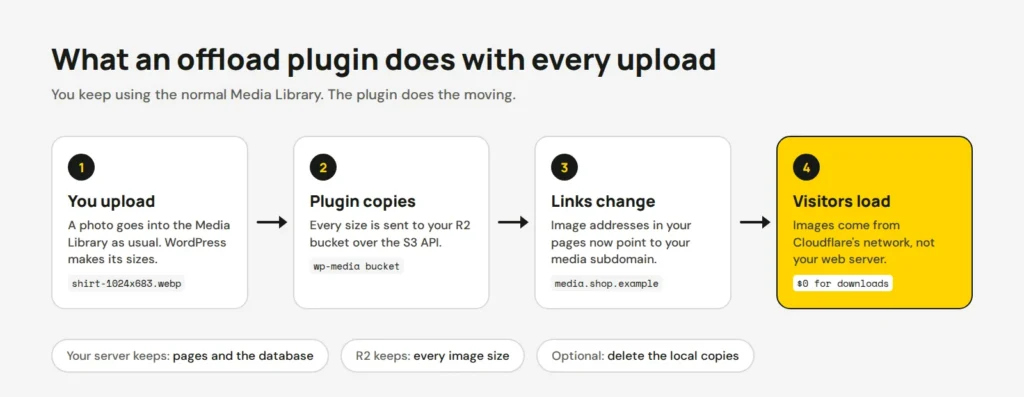
Check it worked
Open a page, right-click an image and copy its address. It should start with your media subdomain. Then check the headers in a terminal:
curl -sI https://media.example.com.au/2026/10/shirt-1024x683.webp | grep -iE "^(HTTP|server|cf-cache-status)"You want a 200 status and server: cloudflare. Run it twice, and cf-cache-status should change to HIT. My guide to checking headers with curl explains each line.
Only switch to deleting local copies after a few weeks without broken images. One user of the plugin reported missing thumbnails after its Smart Local Cleanup option, so test it on a copy of your site first. And remember that your backups no longer include the images, so back up the bucket too.
If you’d rather have us move a big media library for you, our site updates service covers it.
Opens in a new tab


Comments
No comments yet. Questions, fixes and better ways are all welcome.