You want to work on a Shopify theme in your own code editor, with Git and a live preview. You do that with Shopify CLI, a command-line tool from Shopify. shopify theme init starts a new theme. shopify theme dev serves it against your store with live reload, and shopify theme push uploads it.
You no longer need a private app or a Theme Kit password. The CLI signs in with your Shopify account.
What you need
- A store to work against. A free development store from the Shopify Partners dashboard is ideal. I’d always use one of these rather than a live store. Nobody shops there, so it’s a safe place to make mistakes.
- A staff or collaborator account on that store, with permission to manage themes.
- Node.js (a current LTS version) and Git.
Install Shopify CLI
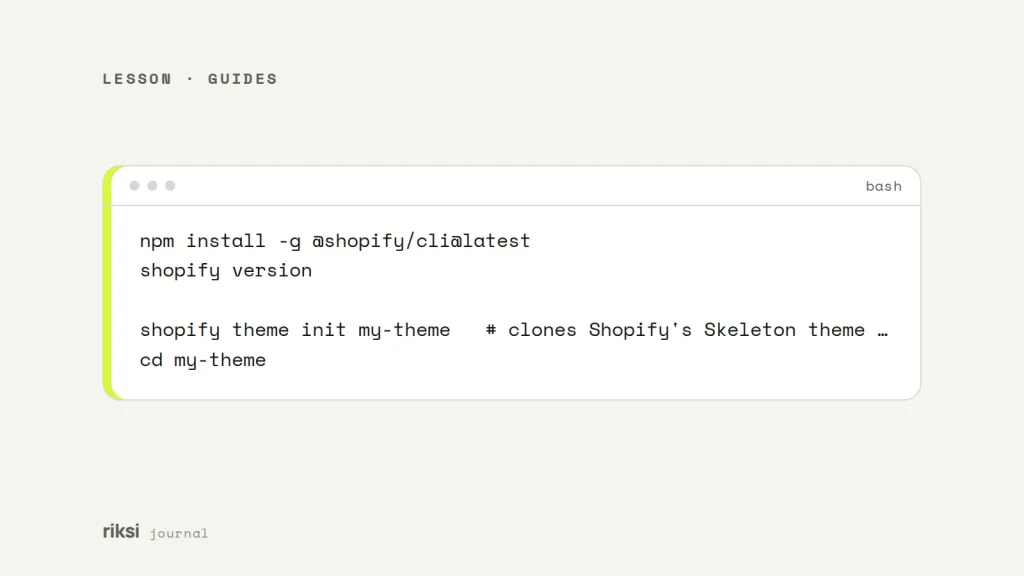
npm install -g @shopify/cli@latest
shopify version
On a Mac you can also install it with Homebrew (brew tap shopify/shopify && brew install shopify-cli). Older guides set up a private app and Theme Kit. That was the old workflow, and I’d skip those guides. Shopify now recommends Shopify CLI for all theme development.
Start a theme
shopify theme init my-theme   # clones Shopify's Skeleton theme, a minimal starting point
cd my-theme
To work on a theme that’s already on a store, pull it down instead.
shopify theme pull --store your-store.myshopify.comDo you want a full reference theme to learn from, with real sections and settings? Look at Shopify’s own themes, such as Horizon. You can find them in the Theme Store and on GitHub. I find it helps to keep one open next to your own theme while you learn. It’s like having the picture on the box while you put a puzzle together.
Preview with live reload
shopify theme dev --store your-store.myshopify.comThe first run opens a browser so you can log in. The CLI then uploads your files to a hidden development theme. It gives you a local URL, usually http://127.0.0.1:9292, that shows the store with your theme.
CSS and section changes appear without a reload. Other changes refresh the page. Either way, the refresh key on your keyboard gets a lot less use. The command also prints a link that opens the theme editor on the development theme.
How an Online Store 2.0 theme fits together
Online Store 2.0 is the current type of Shopify theme. These are its folders.
| Folder | What goes in it |
|---|---|
layout/ |
theme.liquid, the page shell around everything. |
templates/ |
One JSON file per page type (product.json, collection.json), listing which sections appear. |
sections/ |
Reusable blocks of the page that merchants can set up, each with a {% schema %} of settings. |
blocks/ |
Theme blocks that merchants can nest inside sections. |
snippets/ |
Small Liquid partials rendered with {% render %}. |
assets/ |
CSS, JavaScript, images and fonts. |
config/ |
Theme settings and their saved values. |
locales/ |
Translation strings. |
The key idea is that JSON templates only list sections. Merchants move those sections around and change their settings in the theme editor, without touching code. It’s a bit like a playlist, where you write the songs and merchants choose the order. So most of your work is building good sections, with settings in their schema.
{% comment %} sections/announcement.liquid {% endcomment %}
<div class="announcement">{{ section.settings.text }}</div>

{% schema %}
{
  "name": "Announcement",
  "settings": [
    { "type": "text", "id": "text", "label": "Text", "default": "Free shipping over $100" }
  ],
  "presets": [ { "name": "Announcement" } ]
}
{% endschema %}
Check, push and publish
shopify theme check                 # lint Liquid, JSON and performance problems
shopify theme push --unpublished    # upload as a new, unpublished theme
shopify theme publish               # make it the live theme when you are ready
Theme Check catches missing translations, deprecated tags, and heavy assets that slow the store down. I’d run it before every push. It can feel picky at first, but being picky is its whole job. shopify theme share uploads an unpublished copy and gives you a preview link to send to the store owner.
Keep the theme in Git
Keep the theme in a Git repository. Then connect it in Online Store → Themes → Add theme → Connect from GitHub. Shopify then keeps a branch and a theme in sync, in both directions.
This includes changes merchants make in the theme editor. Without the sync, those changes silently overwrite your JSON templates. So pull before you start work. And don’t edit the same template in the editor and in code at the same time. Two editors on one template is one editor too many.
My advice is to connect GitHub before anyone starts editing the theme. It’s much easier than sorting out lost changes later.
If you’d rather have a custom theme built for you, that’s what we do.
Comments
No comments yet. Questions, fixes and better ways are all welcome.