You have a few projects in MAMP, and each one lives at an address like localhost:8888/mysite. A virtual host gives each local project its own address, such as http://mysite.test. In the free version of MAMP, you set it up by hand in four steps.
- Switch on Apache’s virtual host file in
httpd.conf. - Describe the site in
httpd-vhosts.conf. - Point the name at your own Mac in
/etc/hosts. - Restart the servers.
MAMP PRO does the same thing from its Hosts screen.
Why use a virtual host?
On a new local project, this is the first thing I set up. It gives each project its own street address, instead of a room number in one shared building.
- Sites run at the web root, like they will on the live server. So absolute links such as
/wp-content/…just work. - WordPress and other CMSs store the site URL. A clean address makes moving to live easier.
- Several projects can run side by side without clashing.
I’d use the .test ending. It’s reserved for this use, and it will never be a real domain. Avoid .dev. It’s a real top-level domain, and browsers force it onto HTTPS.
1. Switch on virtual hosts in httpd.conf
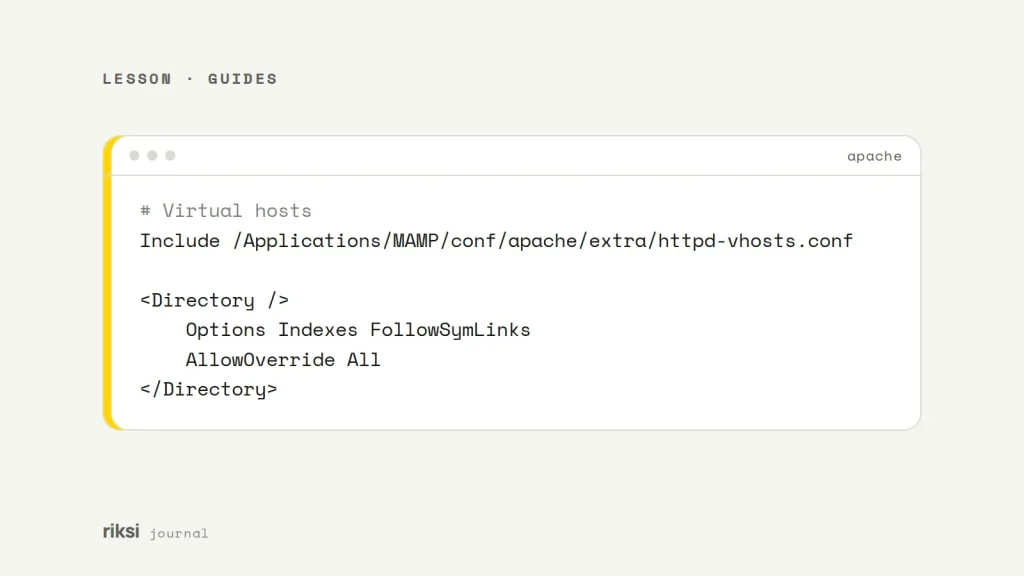
Open /Applications/MAMP/conf/apache/httpd.conf in a text editor. Find the line that includes the virtual hosts file. Remove the # at the start of that line, so it’s active. Apache skips every line that starts with that symbol, so one character is the whole switch.
# Virtual hosts
Include /Applications/MAMP/conf/apache/extra/httpd-vhosts.conf
In the same file, check the <Directory /> block. It must allow .htaccess overrides and symlinks, because WordPress permalinks need them. Be careful with typos in this file. One wrong character can stop Apache from starting.
<Directory />
    Options Indexes FollowSymLinks
    AllowOverride All
</Directory>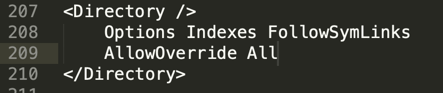
2. Add the site to httpd-vhosts.conf
Open /Applications/MAMP/conf/apache/extra/httpd-vhosts.conf. It comes with example hosts, so comment those out (put a # at the start of each line). Then add one block for localhost, so the MAMP start page still works. After that, add one block per project.
<VirtualHost *:80>
    ServerName localhost
    DocumentRoot "/Applications/MAMP/htdocs"
</VirtualHost>

<VirtualHost *:80>
    ServerName mysite.test
    DocumentRoot "/Users/you/Sites/mysite"
    <Directory "/Users/you/Sites/mysite">
        Options Indexes FollowSymLinks
        AllowOverride All
        Require all granted
    </Directory>
</VirtualHost>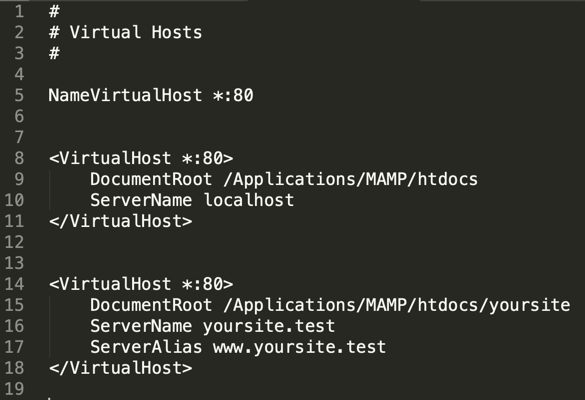
The port in <VirtualHost *:80> must match the port Apache listens on. By default, MAMP uses port 8888 for Apache and 8889 for MySQL. So you have two choices.
- Use
*:8888, and browse tohttp://mysite.test:8888. - Or set MAMP’s ports to 80 and 3306 for clean addresses, in Preferences → Ports → 80 & 3306. Port 80 needs your Mac password when MAMP starts.
I prefer the second option. I don’t mind typing the password when MAMP starts, and the addresses stay clean. With the first option, you get very good at typing four eights.
3. Point the name at your Mac
Your Mac needs to know that mysite.test means this computer. The hosts file is like a note on your own desk. Your Mac reads it before it asks the internet. Add it to /etc/hosts in Terminal.
sudo nano /etc/hosts

# add this line, save with Ctrl+O, exit with Ctrl+X
127.0.0.1   mysite.test

# clear the DNS cache so the change is picked up
sudo dscacheutil -flushcache; sudo killall -HUP mDNSResponder
4. Restart and test
Stop and start the servers in MAMP. Then visit http://mysite.test (or add :8888). If you get the wrong site or an error, check this table.
| Symptom | Likely cause |
|---|---|
| MAMP start page instead of your site. | The port in the VirtualHost doesn’t match Apache’s port. |
| “Forbidden”. | Missing Require all granted, or the folder isn’t readable. |
| Browser searches instead of loading. | Type http:// in front, or the hosts entry is missing. |
| Apache won’t start. | A typo in the config, so check /Applications/MAMP/logs/apache_error.log. |
| WordPress redirects to the old URL. | Update siteurl and home, or run wp search-replace. |
With MAMP PRO
MAMP PRO does all of this for you. If you just did all four steps by hand, that may feel a little unfair. In Hosts, click +, enter the name and choose the folder. It writes the virtual host and updates /etc/hosts. It can also create a trusted SSL certificate, so the local site works over HTTPS.
Whichever version you use, my advice is to give every project its own host. It keeps each local site close to how it runs live.


Comments
No comments yet. Questions, fixes and better ways are all welcome.