You need to know which WordPress version a site runs, maybe before an update or a security check. The quickest way is to log in and look at Dashboard → Updates. Or run wp core version on the server. If you can’t log in, the version usually shows in the page source, the RSS feed or the file wp-includes/version.php. Here is each method, from most to least reliable.
1. In the dashboard
Log in as an administrator and go to Dashboard → Updates. The page either says “You have the latest version of WordPress”, or it names your version and the one available. The At a Glance box on the main dashboard also shows it. The footer of most admin screens reads “Version x.y.z” too.
Be careful when the site is out of date. Then the footer shows “Get Version x.y” instead, which is the new version. That’s easy to misread. To see the installed version, click the WordPress logo at the top left of the admin bar and choose About WordPress. Or go straight to /wp-admin/about.php. The heading there names the version that is installed. Yes, on an old site the footer shows the version you could have, not the one you have. I find that odd too.

2. With WP-CLI
If you have SSH access, this is the method I’d use. WP-CLI gives you a clear answer. It works even when the dashboard is broken. It prints the version number and nothing else, so there’s nothing to misread.
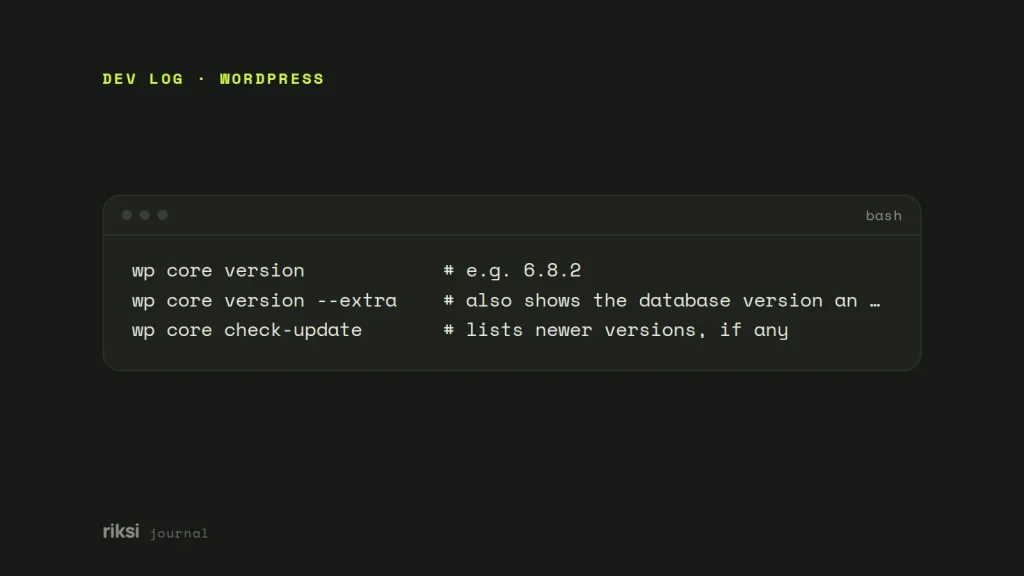
wp core version            # e.g. 6.8.2
wp core version --extra    # also shows the database version and locale
wp core check-update       # lists newer versions, if any
3. In wp-includes/version.php
Without WP-CLI, open wp-includes/version.php over SFTP or in your host’s file manager. The line you want is near the top:
$wp_version = '6.8.2';This file is the source of truth. The dashboard, WP-CLI and every other method read the value from here. The other methods are like copies of a document, and this file is the original. The same file also holds $wp_db_version, which changes when an update changes the database.
4. From the outside: page source, feed and asset URLs
You can often find a site’s version without any access at all. WordPress likes to tell people its version, and by default it does so in three public places. This is also what a security scanner does.
- The generator tag. View the page source and search for
generator. By default WordPress prints<meta name="generator" content="WordPress 6.8.2">in the<head>. - The RSS feed. Open
/feed/and look for<generator>https://wordpress.org/?v=6.8.2</generator>. - Script and style URLs. Core files load with a version query string, such as
wp-includes/js/wp-embed.min.js?ver=6.8.2. Themes and plugins use the same parameter for their own versions. So only trust it on files under/wp-includes/.
A theme or security plugin can remove any of these. So if they’re missing, that tells you nothing. If they’re there, they’re usually accurate.
Should you hide the version?
Many security guides tell you to remove the generator tag. It does no harm, and it takes one line in a theme or plugin:
remove_action( 'wp_head', 'wp_generator' );
add_filter( 'the_generator', '__return_empty_string' ); // also covers feeds
But I’d be realistic about what it gives you. Automated attacks rarely check the version first. They try known exploits against every site they find. The version can also still be worked out from which core files exist and what they contain. So hiding it is only housekeeping. It’s like removing the brand label from a lock. Someone who tries every door won’t stop to read it. The real protection is staying up to date, and that’s easy to turn on:
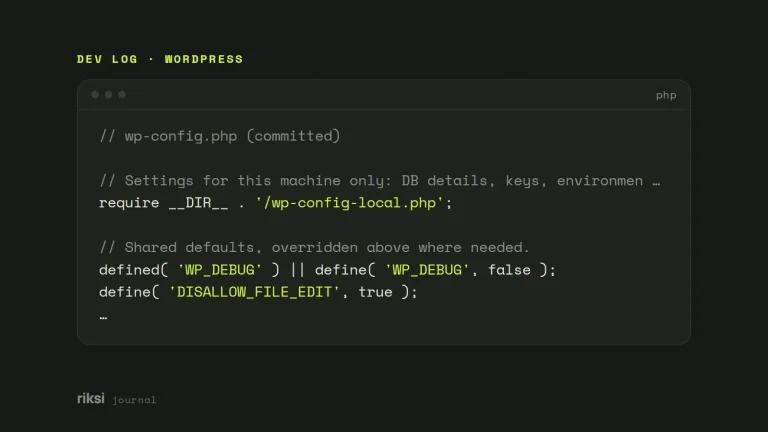
// wp-config.php: automatic minor (security) releases are on by default.
// This opts in to major releases as well.
define( 'WP_AUTO_UPDATE_CORE', true );
What the numbers mean
WordPress versions look like 6.8.2. The first two numbers together are the major release (6.8). A major release brings new features and comes out a few times a year. The third number is the minor release (the .2). A minor release carries security and bug fixes, and it installs automatically by default.
So going from 6.7.3 to 6.8 is a feature update, and I’d test it first. A staging copy of the site is the place for that test. Going from 6.8.1 to 6.8.2 is one I’d apply straight away.
Whatever version you find, keeping the site updated matters far more than hiding the number.
If you only check one place, make it Dashboard → Updates. It also shows you the version that’s available. And if that number is newer than yours, you know what to do next.
Comments
No comments yet. Questions, fixes and better ways are all welcome.