Manage WordPress with Composer
Your WordPress plugins get updated from the dashboard, and no two environments match. Composer fixes that. It’s the package manager for PHP. It lets you list a WordPress site’s plugins and themes, with versions, in one composer.json file. Then you install them all with a single command, the same way PHP projects handle their libraries.
Two pieces make it work for WordPress. composer/installers puts each package in the right folder. WPackagist mirrors the WordPress.org plugin and theme directories as Composer packages.
Why use Composer?
I prefer Composer on any site with more than one environment, for these reasons.
- Repeatable builds. Every environment gets exactly the plugin versions in
composer.lock, not whatever someone clicked in the dashboard. - Smaller repositories. You commit two small files instead of every plugin’s code.
- Clear updates.
composer updateshows exactly what changed, and the diff of the lock file is your record. - Autoloading. Your own classes and third-party PHP libraries load without a long list of
requirelines.
Composer won’t make a plugin better. It makes it the same on every server, which is the point.
Make your own theme or plugin installable
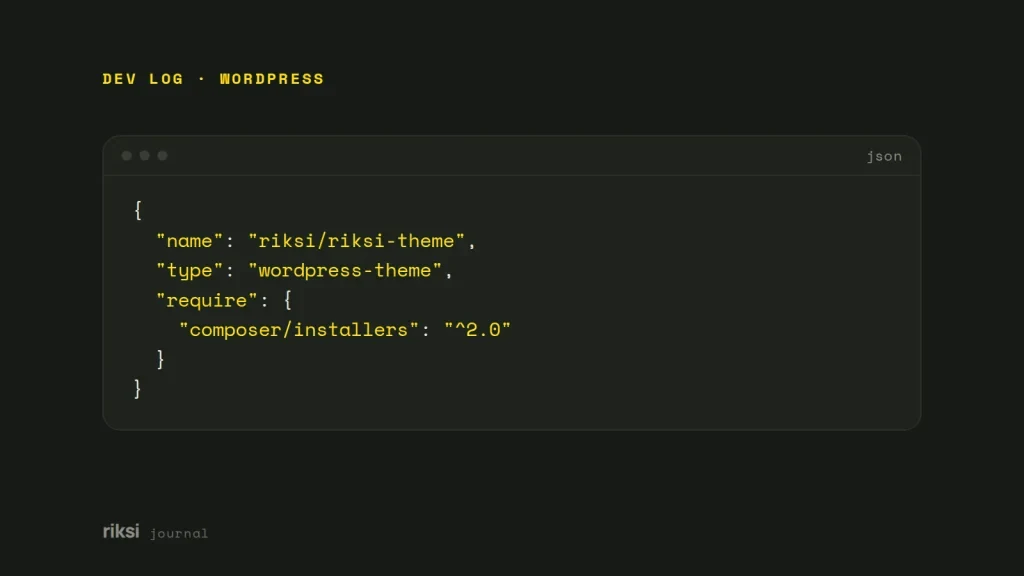
Give the package a type that composer/installers understands. Then it lands in wp-content/themes or wp-content/plugins, not in vendor. The type works like an address label that tells the installer which folder to deliver to.
{
  "name": "riksi/riksi-theme",
  "type": "wordpress-theme",
  "require": {
    "composer/installers": "^2.0"
  }
}
The other common types are wordpress-plugin and wordpress-muplugin. Composer 2.2 and later asks you to allow installer plugins explicitly. The project file below does that.
Set up a site-level composer.json
At the root of the project, add WPackagist as a repository. Then tell the installers where each type of package goes.
{
  "name": "example/site",
  "repositories": [
    { "type": "composer", "url": "https://wpackagist.org", "only": ["wpackagist-plugin/*", "wpackagist-theme/*"] }
  ],
  "require": {
    "php": ">=8.1",
    "composer/installers": "^2.0",
    "wpackagist-plugin/advanced-custom-fields": "^6.3",
    "wpackagist-plugin/wordpress-seo": "*",
    "wpackagist-theme/twentytwentyfive": "^1.0"
  },
  "extra": {
    "installer-paths": {
      "wp-content/plugins/{$name}/": ["type:wordpress-plugin"],
      "wp-content/themes/{$name}/": ["type:wordpress-theme"],
      "wp-content/mu-plugins/{$name}/": ["type:wordpress-muplugin"]
    }
  },
  "config": {
    "allow-plugins": { "composer/installers": true }
  }
}
Run composer install, and the plugins appear in wp-content/plugins. That’s the whole install, with no zip files and no upload screen.
A package name on WPackagist is the plugin’s WordPress.org slug with a prefix, either wpackagist-plugin/ or wpackagist-theme/. Use "*" to follow the latest release. Use a constraint such as "^6.3" to stay on one major version. I’d pin the plugins that matter most like this.
Premium plugins
Paid plugins aren’t on WPackagist. Some vendors run their own Composer repository that uses a licence key. For the rest, keep the zip in a private repository or a private Composer package. Then add that repository to the list.
Autoload your own code and drop the require lines
Composer’s autoloader works for theme and plugin classes too. Map a namespace to a folder, and require the autoloader once.
{
  "autoload": {
    "psr-4": { "Riksi\\": "src/" }
  }
}
<?php
// functions.php or the main plugin file
require_once __DIR__ . '/vendor/autoload.php';
( new Riksi\Setup() )->boot();What to commit
Commit these files.
composer.jsonandcomposer.lock.- Your own theme and plugins.
wp-config.php, without secrets.
Leave these out of Git. It will store a whole vendor folder without complaint, but that doesn’t mean it should.
- The
vendor/folder. - Plugins and themes installed by Composer.
- Uploads and environment settings.
On deploy, run composer install --no-dev --optimize-autoloader on the server or in your build step. Deployer can run this step for you on every release.
Plugin updates then happen in Git. So I’d turn off updates in the dashboard with define( 'DISALLOW_FILE_MODS', true );. That way the dashboard and Git can’t undo each other’s changes.
Or start from Bedrock
If you’re starting fresh, look at Bedrock from Roots. It’s a ready-made project layout that does three things.
- It installs WordPress core itself with Composer.
- It keeps configuration in a
.envfile. - It moves the web root into a
web/folder, sovendorand config files are never public.
I think Bedrock is a good default for new builds. The setup above is easier to add to an existing site.
On an existing site, I’d start with one plugin in composer.json. Move the rest over once that works. After that, the update button in the dashboard has no job left.


Comments
No comments yet. Questions, fixes and better ways are all welcome.