You load a page or run an import, and PHP stops with an error about memory. The error “Fatal error: Allowed memory size of 134217728 bytes exhausted” means a PHP script tried to use more memory than memory_limit allows. Raise the limit in one of these places:
- In
php.ini, if you control the server. - In
.user.ini, on most shared and PHP-FPM hosts. - In
.htaccess, but only where PHP runs as an Apache module.
On WordPress, WP_MEMORY_LIMIT in wp-config.php raises it, within whatever the server allows.
Read the error first
The number in the message is the current limit in bytes. 134217728 is 128 MB, and 268435456 is 256 MB. PHP reports the limit in bytes, so 128 MB shows up as a nine-digit number. The rest of the message names the file and line where memory ran out, and that’s often the real clue. I always read that part before I change anything. If it’s always the same plugin or the same import, the fix may be in that code, not the limit.
To see the limit PHP is really using, and the configuration file it loaded, create a temporary file.
<?php
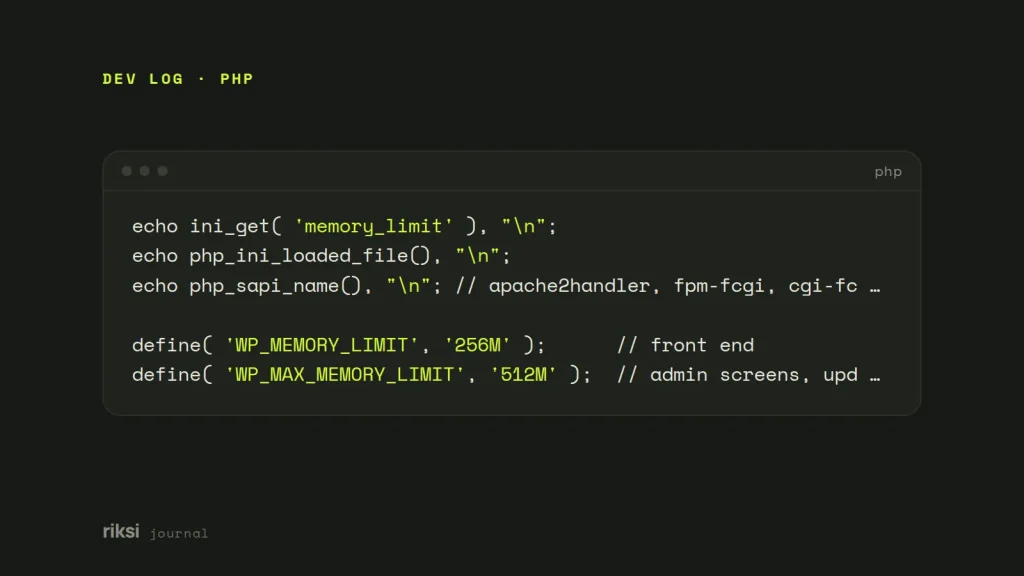
echo ini_get( 'memory_limit' ), "\n";
echo php_ini_loaded_file(), "\n";
echo php_sapi_name(), "\n"; // apache2handler, fpm-fcgi, cgi-fcgi or cli
Load it in the browser, note the results, and delete it. The last line is the server API (how PHP runs), which matters for option 3. The command line uses its own configuration. So php -i | grep memory_limit in a terminal may show a different value from the website.
Option 1: php.ini (you run the server)
; php.ini
memory_limit = 256M
Then restart PHP-FPM or Apache so it reads the change. For example, sudo systemctl restart php8.3-fpm. On Ubuntu and Debian, the web server’s file is /etc/php/8.3/fpm/php.ini (or apache2 instead of fpm). It’s separate from the CLI one. Yes, one server can have more than one php.ini. Only one of them belongs to the website.
Option 2: .user.ini (shared hosting, PHP-FPM, CGI)
Most modern hosts run PHP as FastCGI or PHP-FPM. On those, a .user.ini file in the site’s root sets values for that folder.
; .user.ini
memory_limit = 256M
By default PHP rereads these files every five minutes (user_ini.cache_ttl). So the change can take a few minutes to show. It’s like a noticeboard that someone only checks every five minutes. Many control panels write this file for you, such as cPanel’s MultiPHP INI Editor.
Option 3: .htaccess (Apache with mod_php only)
# .htaccess
php_value memory_limit 256M
This only works when PHP runs as an Apache module. Under PHP-FPM, Apache doesn’t know php_value, and the whole site returns a 500 Internal Server Error. Check the server API above before you try it, and remove the line if the site breaks.
Option 4: WordPress constants
WordPress asks PHP for more memory itself, up to a limit you set in wp-config.php. It’s a request, though, and the host can still say no. Add these lines above the “That’s all, stop editing” line:
define( 'WP_MEMORY_LIMIT', '256M' );      // front end
define( 'WP_MAX_MEMORY_LIMIT', '512M' );  // admin screens, updates, image processing
By default WP_MEMORY_LIMIT is 40M (64M on multisite), and WP_MAX_MEMORY_LIMIT is 256M. These can only raise PHP’s limit where the host lets scripts change it. Some hosts lock memory_limit. Then use option 1 or 2, or ask your host’s support team. To see the PHP memory limit WordPress sees, go to Tools → Site Health → Info → Server.
How much is enough?
These are the values I’d start with.
- 128M for a small brochure site.
- 256M for WooCommerce, page builders or a lot of plugins.
- 512M for big imports or image-heavy admin work, but for admin only.
Don’t set it to -1 (unlimited) or several gigabytes. The limit exists so one request that goes wrong can’t take the whole server down. It works like a fuse, which cuts one circuit so the rest of the house keeps its power. If a page needs more than 256 MB on every load, something is loading far too much. It might be a query with no limit, or a plugin building a huge array. A higher limit only hides it until traffic rises. The Query Monitor plugin shows the memory each request uses, and I find it the quickest way to find the cause.
After any change, check the new value in Site Health or with the test file. Then you know which setting won. I’d fix the cause first, and raise the limit only as far as you need.
Comments
No comments yet. Questions, fixes and better ways are all welcome.