CAPTCHA explained: keep bots off your site

Every public form on your site is an open door, and bots walk through it all day. A CAPTCHA is the quick check at that door that asks “are you a real person?” before letting the form through. It stops spam signups, fake accounts, junk contact messages and worse. Below I explain what a CAPTCHA does, the different types, and which tool to pick. I also cover how to add it in code or on WordPress and Shopify, and how a leaky form can get your real emails blocked.
First, one myth to clear up, because it causes a lot of confusion.
What a CAPTCHA stops, and what it doesn’t
A CAPTCHA guards your forms and actions. It is brilliant at stopping the small, automated abuse that piles up. Think spam through your contact form, thousands of fake signups, bots testing stolen cards at checkout, and comment spam.
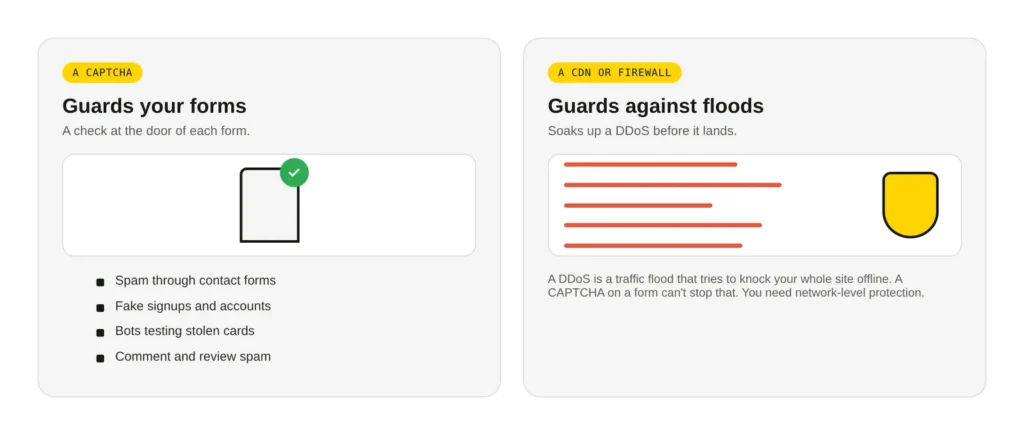
What it does not do is stop a DDoS attack. That’s a different beast, where a flood of traffic tries to knock your whole site offline. A checkbox on a form can’t help there. You stop a flood at the network, with a CDN or firewall like Cloudflare that soaks up the traffic before it reaches you. People mix these up all the time, so if someone sells you a CAPTCHA as DDoS protection, keep your wallet closed.
The types, from annoying to invisible
CAPTCHAs have come a long way from the wavy letters nobody could read. Here’s the family, roughly in order of how much they bother your visitor.
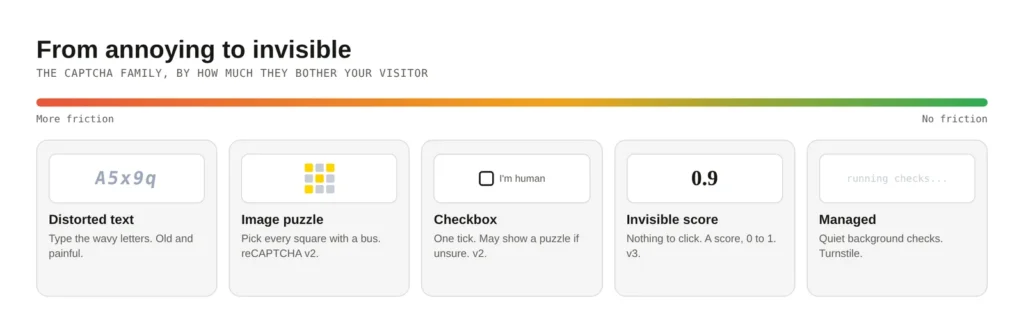
- Distorted text. The old “type these squiggly letters” test. It annoys humans more than it stops bots now, so avoid it.
- The checkbox. Google’s reCAPTCHA v2, the “I’m not a robot” tick. If it’s unsure, it shows an image puzzle, like picking every square with a bus.
- The invisible score. reCAPTCHA v3 shows nothing. It watches how the visitor behaves and hands your server a score from 0 to 1, where 1 looks human. You decide what to do with each score.
- Managed checks. Cloudflare Turnstile and similar tools run quiet checks in the background and only show a box if something looks off. Most visitors see nothing at all.
That score in version 3 trips people up, so try it. Pick a visitor below and watch how a site treats each score:
<div class="sc">
  <p class="sc__q">What does the visitor look like?</p>
  <div class="sc__opts">
    <label><input type="radio" name="v" id="v1" checked><span>Smooth and human-like</span></label>
    <label><input type="radio" name="v" id="v2"><span>A bit odd</span></label>
    <label><input type="radio" name="v" id="v3"><span>Fast and robotic</span></label>
  </div>
  <div class="meter">
    <div class="meter__scale"><span>0.0 bot</span><span>1.0 human</span></div>
    <div class="meter__track"><div class="meter__fill"></div><div class="meter__dot"></div></div>
  </div>
  <div class="verdicts">
    <div class="v v--allow"><span class="v__score">Score 0.9</span><span class="v__act">Allow</span><span class="v__note">Looks human. Let the form through.</span></div>
    <div class="v v--step"><span class="v__score">Score 0.4</span><span class="v__act">Add a challenge</span><span class="v__note">Not sure. Show a checkbox, or review it.</span></div>
    <div class="v v--block"><span class="v__score">Score 0.1</span><span class="v__act">Block</span><span class="v__note">Looks like a bot. Stop the form.</span></div>
  </div>
</div>
.sc{font-family:"DM Sans",system-ui,sans-serif;color:#171915;background:#F4F4F4;border:1px solid #D7D7D7;border-radius:16px;padding:22px;max-width:560px;margin:0 auto}
.sc__q{font-family:Manrope,system-ui,sans-serif;font-weight:800;font-size:17px;margin:0 0 14px}
.sc__opts{display:flex;flex-direction:column;gap:9px;margin-bottom:20px}
.sc label{display:flex;align-items:center;gap:11px;background:#fff;border:1px solid #D7D7D7;border-radius:11px;padding:11px 14px;cursor:pointer;font-size:15px;transition:border-color .15s,box-shadow .15s}
.sc label:hover{border-color:#171915}
.sc input{appearance:none;-webkit-appearance:none;width:20px;height:20px;border:2px solid #9a9b94;border-radius:50%;flex:0 0 auto;margin:0;cursor:pointer}
.sc input:checked{border-color:#171915;background:radial-gradient(circle,#FFD400 0 6px,#fff 6px 8px,#FFD400 8px)}
.sc label:has(input:checked){border-color:#171915;box-shadow:0 0 0 2px #FFD400}
.meter{margin-bottom:18px}
.meter__scale{display:flex;justify-content:space-between;font-family:"Space Mono",monospace;font-size:12px;color:#5C5E57;margin-bottom:6px}
.meter__track{position:relative;height:16px;border-radius:30px;background:linear-gradient(90deg,#e7563b,#f0a31e 45%,#2faa55);border:1px solid #D7D7D7;overflow:visible}
.meter__dot{position:absolute;top:50%;width:22px;height:22px;border-radius:50%;background:#fff;border:3px solid #171915;transform:translate(-50%,-50%);transition:left .25s}
.meter__fill{display:none}
.sc:has(#v1:checked) .meter__dot{left:90%}
.sc:has(#v2:checked) .meter__dot{left:40%}
.sc:has(#v3:checked) .meter__dot{left:10%}
.v{display:none;background:#fff;border:1px solid #D7D7D7;border-left:5px solid #FFD400;border-radius:12px;padding:14px 16px}
.v__score{font-family:"Space Mono",monospace;font-size:13px;color:#5C5E57;display:block;margin-bottom:4px}
.v__act{font-family:Manrope,sans-serif;font-weight:800;font-size:20px;display:block;margin-bottom:4px}
.v__note{font-size:14px;color:#2b2d27}
.sc:has(#v1:checked) .v--allow{display:block}
.sc:has(#v2:checked) .v--step{display:block}
.sc:has(#v3:checked) .v--block{display:block}The lesson from version 3 is that it never says a plain yes or no. It gives you a score, and you set the line. Too strict and you block real customers. Too loose and bots get through. Most sites start around 0.5 and adjust.
The tools, side by side
Four names cover almost every site. Here’s the honest rundown, with prices correct at the time of writing.
| Tool | What the visitor sees | Price | Best for |
|---|---|---|---|
| reCAPTCHA v2 | Checkbox, sometimes a puzzle | Free to 10,000 checks a month | Quick, familiar protection |
| reCAPTCHA v3 | Nothing, a background score | Free to 10,000 checks a month | No friction, if you’ll tune it |
| Cloudflare Turnstile | Usually nothing | Free, unlimited | Most sites, my first pick |
| hCaptcha | Image puzzle | Free tier, Pro from about US$99/mo | Puzzles without Google |
| Friendly Captcha | Nothing, a quiet maths test | Paid, from about €9/mo | EU sites that want data in Europe |
Two things worth knowing. In 2026 Google cut reCAPTCHA’s free limit hard. It fell from about a million checks a month down to 10,000, with billing through Google Cloud above that. It’s like a free coffee card that used to last a year and now runs out by Tuesday. That’s why so many people are moving to Cloudflare Turnstile, which is free with no traffic limit and built to be lighter on privacy. For most of the sites we build, Turnstile is where I’d start.
How to add it to your site
Every CAPTCHA works in two halves. The visitor’s browser shows the widget and gets a one-time token. Your server then checks that token with the provider before trusting the form. The front part is a script and a tag:
<script src="https://challenges.cloudflare.com/turnstile/v0/api.js" async></script>

<form method="POST" action="/contact">
  <input type="email" name="email">
  <div class="cf-turnstile" data-sitekey="YOUR_SITE_KEY"></div>
  <button>Send</button>
</form>
The back part is the important half. Your server sends the token and your secret key to the provider, and only accepts the form if the answer is a pass. Keep that secret key on the server. Putting it in the page is like taping your house key to the front door:
<?php
$token  = $_POST['cf-turnstile-response'] ?? '';
$verify = file_get_contents(
  'https://challenges.cloudflare.com/turnstile/v0/siteverify?' . http_build_query([
    'secret'   => getenv('TURNSTILE_SECRET'), // kept on the server
    'response' => $token,
  ])
);
$result = json_decode($verify, true);

if (empty($result['success'])) {
  http_response_code(400);
  exit('Looks like a bot. Form not sent.');
}
// Passed: safe to send the email
Most people never touch that code, though. The easy routes:
- WordPress. Your form plugin already supports this. Contact Form 7, WPForms, Gravity Forms and Fluent Forms all have a settings page where you paste your site and secret keys. For login spam, a security plugin like Wordfence adds a CAPTCHA to the login box.
- Shopify. It’s a switch. In your admin, turn on spam protection and Shopify adds Google reCAPTCHA to your contact, comment and account forms. For custom forms, Shopify’s docs show how to wire in reCAPTCHA yourself.
The spam trap that gets your real emails blocked
This is the part most people miss, and it’s the scariest. There are two spam problems, and the second is far worse than the first.
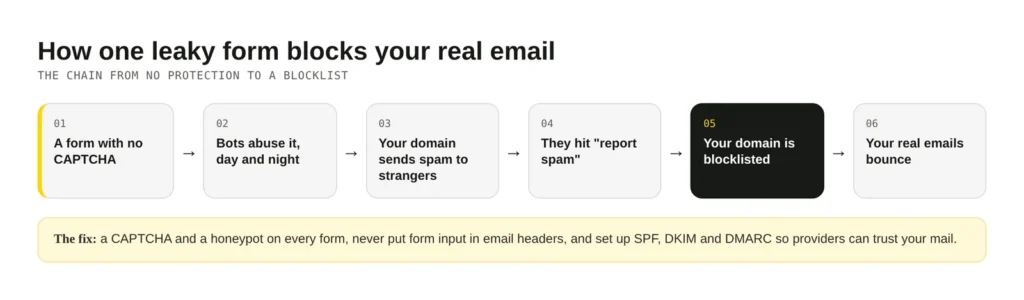
The first is simple: bots flood your contact form, and your inbox fills with junk. Annoying, but contained. The second is that a badly built form can be tricked into emailing strangers on your behalf. A bot slips hidden instructions into the name or email field, and your server dutifully sends spam to a stranger, stamped with your domain.
Here’s why that’s a disaster. Those strangers hit “report spam”. Mailbox providers see your domain sending junk, and your reputation drops. Do it enough and your domain lands on a blocklist. After that, your normal emails, like order receipts and replies to customers, start bouncing or going to the spam folder. One leaky form can poison your whole email setup.
The fix is layered, and none of it is hard:
- Put a CAPTCHA and a honeypot on every public form. A honeypot is a hidden field real people never see. If it gets filled in, a bot did it, so you bin the message.
- Never let form input into the email headers. Keep the “From” address fixed, put the visitor’s words only in the message body, and use a mail library that cleans the input. This closes the trick above.
- Set up SPF, DKIM and DMARC. These are three small DNS records that let mailbox providers confirm your mail is really from you. They won’t stop the abuse on their own, but they prove you’re the real sender and lift your deliverability.
Already getting spam reports, or seeing email bounce? Check whether your domain is on a blocklist. Fix the leaking form first, then ask to be removed. My guide on tracking and privacy covers a related duty: being honest about what your site collects.
My picks, and where to start
If you want one answer: put Cloudflare Turnstile on your forms this week. It’s free, it’s quiet, and it covers most sites without a fuss. Reach for reCAPTCHA v3 if you’re deep in Google’s tools already, and Friendly Captcha if you need your data to stay in Europe. Then add a honeypot and sort out your SPF, DKIM and DMARC.
Do that and the bots mostly give up and move on. If you’d like us to lock down your forms, stop the spam and fix your email reputation, our site updates service covers it.


Comments
No comments yet. Questions, fixes and better ways are all welcome.