Trick 06 Tricks & hacksTerminal
Use the Linux command line on Windows 11 and 10 with WSL
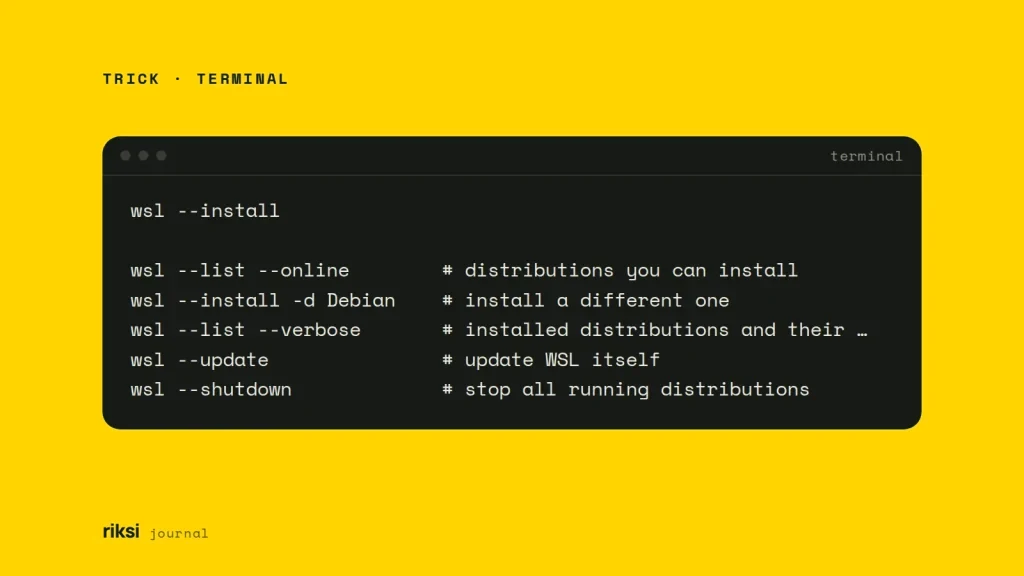
You’re on Windows, but the tools you need expect a Linux shell. Windows can give you one. Open PowerShell as administrator, run wsl --install and restart. The Windows Subsystem for Linux (WSL) then gives you Ubuntu with a real bash shell. You also get apt and all the usual Linux tools, running alongside PowerShell.
Check your Windows version first
- Windows 11: any version supports
wsl --install. - Windows 10: you need version 2004 (build 19041) or later for the one-command install. To check, press Windows + R, type
winverand press Enter. Older builds need the manual steps below.
Windows 10 reached end of support on 14 October 2025. It no longer gets security updates, unless the device is enrolled in Microsoft’s Extended Security Updates (ESU) program. Microsoft currently runs ESU until 12 October 2027. WSL still installs and works on Windows 10. But if the machine you develop on still runs it, I’d plan the move to Windows 11. WSL itself works fine on both. The problem is Windows 10, not the Linux inside it.
WSL 2 also needs hardware virtualisation turned on in the PC’s firmware settings. It usually is on. If the install complains about virtualisation, that’s the setting I’d look for first.
Install with one command and a restart
Right-click the Start button and open Terminal (Admin) or Windows PowerShell (Admin). Then run:
wsl --installThis turns on the Windows features WSL needs and installs the latest WSL. It also sets up Ubuntu as the default distribution, using WSL 2. A distribution is one version of Linux, such as Ubuntu or Debian. Restart when asked.
The first time Ubuntu starts, it finishes installing. Then it asks you to create a Linux username and password. These are separate from your Windows login. The password is what sudo asks for. Next, bring the packages up to date.
sudo apt update && sudo apt upgradeHere are the commands I find most useful from PowerShell.
wsl --list --online        # distributions you can install
wsl --install -d Debian    # install a different one
wsl --list --verbose       # installed distributions and their WSL version
wsl --update               # update WSL itself
wsl --shutdown             # stop all running distributions
In the --list --verbose output, the VERSION column should say 2.
The manual steps for older Windows 10 builds
If wsl --install isn’t recognised, turn the features on yourself. Press the Windows key and type “Turn Windows features on or off”. Tick Windows Subsystem for Linux. For WSL 2, also tick Virtual Machine Platform. Restart when asked.
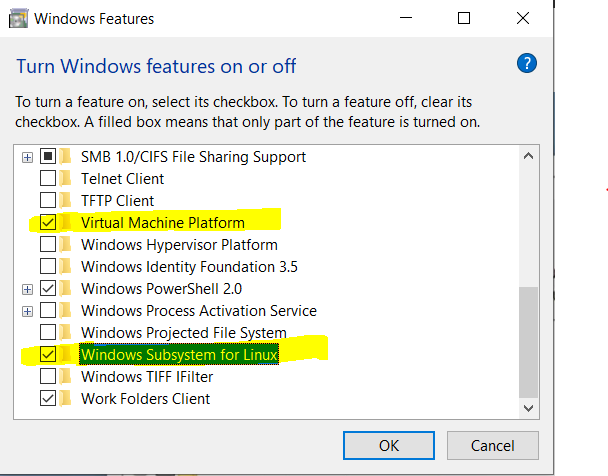
You can also turn on the same two features from an administrator PowerShell.
dism.exe /online /enable-feature /featurename:Microsoft-Windows-Subsystem-Linux /all /norestart
dism.exe /online /enable-feature /featurename:VirtualMachinePlatform /all /norestart
WSL 2 on Windows 10 x64 needs version 1903 (build 18362.1049) or later. On those older builds you may also need the WSL 2 Linux kernel update package. Follow Microsoft’s manual installation guide on learn.microsoft.com to install it. Then run wsl --set-default-version 2.
Next, open the Microsoft Store and search for Ubuntu. Debian, Kali Linux and others are there too. Install the one you want.
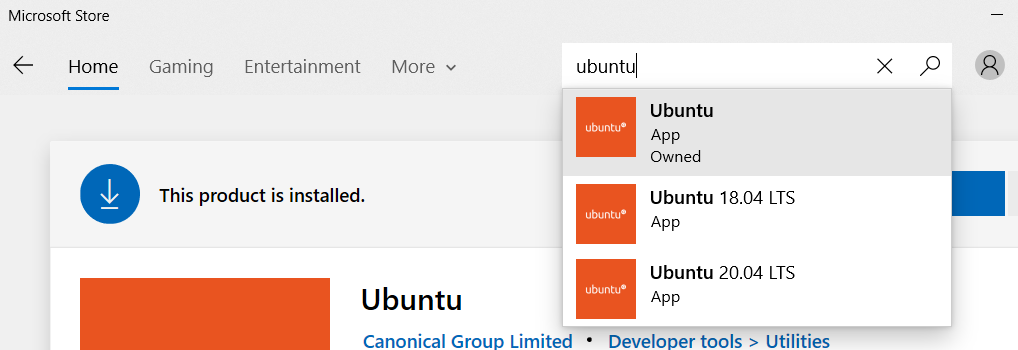
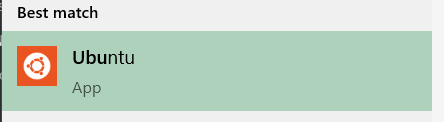
Open Ubuntu from the Start menu and create your Linux user. You now have a working bash shell. The manual way is like taking the stairs instead of the lift. You still end up on the same floor.
WSL 2 or WSL 1?
New installs use WSL 2. I think that’s the right choice for almost everyone. Here, the bigger number is also the better pick. That isn’t always true of version numbers.
| WSL 2 (default) | WSL 1 | |
|---|---|---|
| How it works | A real Linux kernel in a lightweight virtual machine | Translates Linux system calls to Windows |
| Files in the Linux home folder | Fast | Slower |
Files on the Windows drive (/mnt/c) |
Slower | Faster |
| Compatibility | Full. Runs Docker and systemd | Limited |
To switch a distribution between them, run wsl --set-version Ubuntu 2 (or 1).
Work across Linux and Windows
- Your Windows drives are mounted under
/mntin Linux. SoC:\Users\youis/mnt/c/Users/you. A shell alias can put that folder one word away. - To open Linux files from Windows, type
\\wsl.localhost\Ubuntu(or\\wsl$) in the File Explorer address bar. Or runexplorer.exe .inside WSL to open the current folder. - Keep your projects in the Linux file system, such as
~/projects. Microsoft recommends this for performance, and so do I. Git, npm and Composer are much faster there than on/mnt/c. - You can mix tools. Run Windows programs from Linux (
notepad.exe notes.txt) and Linux commands from PowerShell (wsl ls -la). - Windows Terminal comes with Windows 11. It gives you Ubuntu and PowerShell tabs side by side. In VS Code, the WSL extension lets you run
code .from Ubuntu and edit Linux files directly. - Case matters. Linux file names are case-sensitive, and Windows ones are not.
Header.phpandheader.phpare different files in WSL, just as they are on most web servers.
Once it’s installed, I’d move one project into ~/projects and open it with code . from Ubuntu. It’s a quick way to see if WSL suits how you work. If it does, Windows and Linux no longer have to take turns on your PC.


Comments
No comments yet. Questions, fixes and better ways are all welcome.