Trick 08 Tricks & hacksTerminal
Check redirects and headers from the terminal with curl
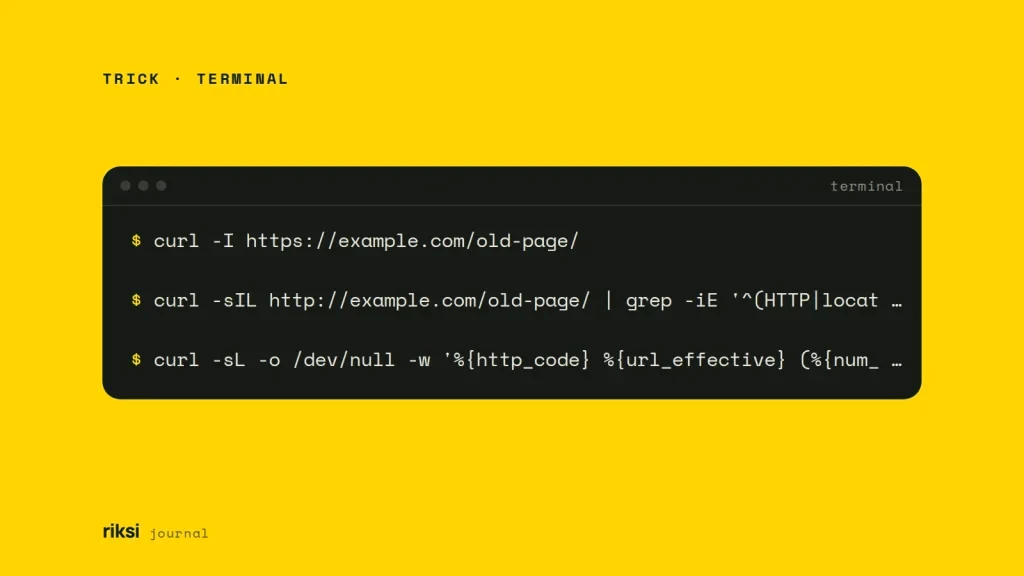
You’ve moved a site, and you want to know if the old addresses still go somewhere sensible. You can check redirects and headers from the terminal with curl. A browser hides the answer, because it follows redirects without telling you. curl shows you every hop (each step in the redirect chain). It’s already installed on macOS, most Linux systems, and Windows 10 and later.
Only the headers
-I asks for the headers only. It’s like reading the envelope without opening the letter. That’s all you need to see the status code and where a redirect points. It’s the first command I’d run.
curl -I https://example.com/old-page/The first line shows the status. 301 is permanent, 302 is temporary, 200 is fine and 404 is missing.
The location line shows where the redirect sends you.
Follow the whole chain
Add -L to follow redirects and -s to hide the progress bar. Then use grep to keep only the lines that matter:
curl -sIL http://example.com/old-page/ | grep -iE '^(HTTP|location)'Each hop prints its status and its target. If there are more than one or two hops, I’d fix it. Point the old address straight at the final one. A browser makes every one of those trips and never mentions them. curl lists them all.
One line per URL
The -w option prints details after the request finishes. This command gives the final status, the final address and how many redirects it took. The format looks like a lot of percent signs and curly brackets. Each one is only the name of a value curl already knows.
curl -sL -o /dev/null -w '%{http_code} %{url_effective} (%{num_redirects} redirects)n' http://example.com/old-page/Test a whole list after a migration
Put the old addresses in a text file, one per line, and loop over them. Without -L, %{redirect_url} shows where each one points:
while read -r url; do
  curl -s -o /dev/null -w "%{http_code}  $url  ->  %{redirect_url}n" "$url"
done < old-urls.txt
Anything that comes back 404 needs a redirect. Anything that comes back 302 should probably be a 301. A 301 is like leaving a forwarding address when you move house. A 404 is moving without leaving one. I’d keep the file with the project, so you can run it again after any change.
Time a page
The same -w option can show where the time goes. A slow ttfb (time to first byte) points at the server or a missing page cache, not the front end. The front end can’t be blamed for that part. Not a single byte has reached it yet.
curl -s -o /dev/null -w 'dns %{time_namelookup}s connect %{time_connect}s ttfb %{time_starttransfer}s total %{time_total}sn' https://example.com/Pretend to be a crawler
-A sets the user agent, the name a browser or bot sends with each request. It’s a quick way to check that a firewall isn’t blocking a search or AI crawler. Yes, a user agent is only a name. curl will send any name you give it.
curl -sI -A "Googlebot" https://example.com/ | head -n 1This only tests your own setup. Real crawlers come from their own networks, and some firewalls check that. But if you get a 403 here, something clearly needs a look.
Keep it handy
Add a couple of aliases to ~/.zshrc or ~/.bashrc. An alias is a short name for a longer command.
alias hdrs='curl -sIL'
alias hops='curl -sIL -o /dev/null -w "%{http_code} %{url_effective} (%{num_redirects} redirects)n"'
Open a new terminal, or run source ~/.zshrc. Then hops http://example.com/old-page/ does the rest.
Of the two, I’d keep hops close. It answers the redirect question in one line. Let the browser keep hiding the hops. You don’t need it to tell you any more.


Comments
No comments yet. Questions, fixes and better ways are all welcome.