Guide 01 GrowSite upgrades
Is your website out of date? A 10-minute check
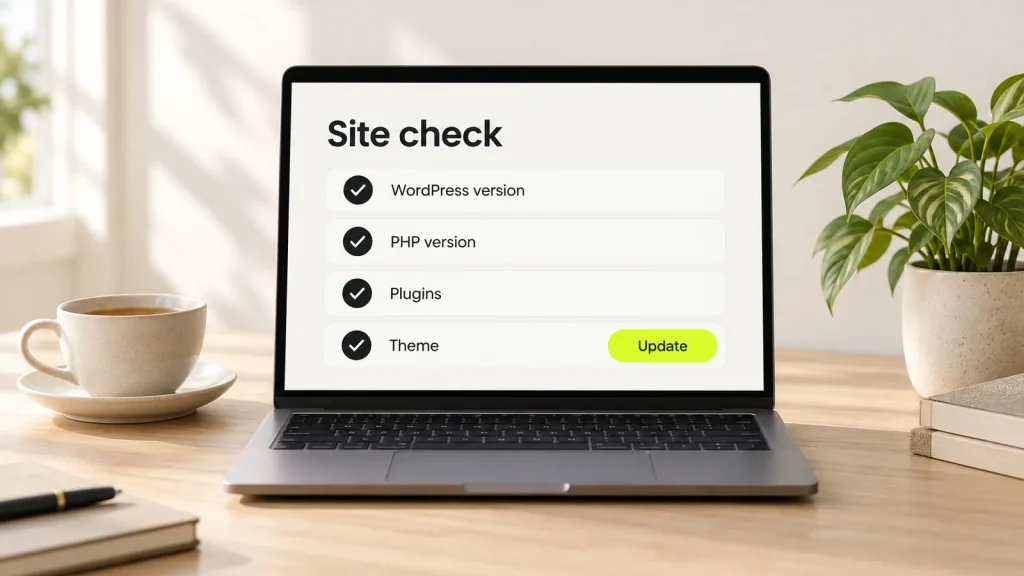
Old software is the easiest way into a website. The good news is that you can check your own site in about 10 minutes, without touching any code. I’ll show you where to look in WordPress and in Shopify, and what to fix first.
You need an admin login and a cup of tea. The tea is optional, but I recommend it.
Why ten minutes now saves a bad week later
Most attacks are not personal. Bots scan the web for old versions of plugins and themes, then try the flaws that have gone public. In its State of WordPress Security in 2026 report, Patchstack counted 11,334 new flaws in 2025. 91% of them were in plugins. The most attacked flaws were hit by mass attacks within a median of five hours.
WordPress itself gets attacked too. On 22 September 2026, WordPress 7.1.2 fixed a critical flaw, and Patchstack saw attackers probing sites within hours. So “I’ll update it next month” is a plan the bots love.
Check 1: your WordPress version
Log in and go to Dashboard → Updates. If it says “You have the latest version of WordPress.”, you’re fine. If it says “An updated version of WordPress is available.”, there is work to do.
WordPress is clear about old versions. Its releases page says “only the most recent in the 7.1 series is safe to use and actively maintained” (WordPress releases). The Updates screen also asks you to back up your database and files first. Listen to it. Backups are boring right up to the day you need one.
Want to check the version of a site you don’t log in to? I wrote about how to find the WordPress version of any site.
Check 2: your PHP version
PHP is the language WordPress runs on, and your host picks the version. Go to Tools → Site Health, open the Info tab, and look under Server for “PHP version”. The Status tab on the same screen also warns you when PHP is too old.
WordPress recommends PHP 8.3 or newer. This is where each version stands on the official PHP supported versions page:
- PHP 8.1 and older get no more security fixes. Upgrade now.
- PHP 8.2 gets its last security fix on 31 December 2026.
- PHP 8.3, 8.4 and 8.5 are still supported.
Most hosts let you change the PHP version in their control panel. I’d test the change on a staging copy first, because an old theme or plugin can break on a newer PHP. Here is how to run local, staging and live copies of WordPress.
Check 3: plugins that nobody looks after
Go to Plugins and look for update notices. Then look at the plugins with no update waiting, because some of them may be abandoned. Search for each one on wordpress.org and check Last updated in the sidebar.
Two warnings on a plugin page mean it’s time to find a replacement.
- “This plugin hasn’t been tested with the latest 3 major releases of WordPress.”
- “This plugin was closed on [date] and is no longer available for download.”
To see if a plugin has known security flaws, search for it in the free Patchstack database or on WPScan. And if a plugin is switched off and you don’t need it, delete it. A switched-off plugin still sits on the server, like a spare key under the doormat.
While you’re on the Plugins screen, click Enable auto-updates next to the plugins you trust. WordPress has had automatic plugin and theme updates since version 5.5.
Check 4: your Shopify theme and checkout
Shopify updates its own platform, but your theme and apps are yours. Go to Online Store → Themes and click your theme’s version number. You’ll see “This theme is up to date”, or a notice that an update is ready. Only themes from the Shopify Theme Store get these updates. A custom theme needs a developer.
Next, check the theme type. Open the default product template in the theme editor. If you see an Add section button, it’s an Online Store 2.0 theme. If not, it’s a “vintage” theme, and Shopify’s free vintage themes only get security fixes.
2026 also changed the checkout. Shopify Scripts stopped running on 30 June 2026. By 26 August 2026, the old Thank you and Order status pages were upgraded automatically. The old additional scripts don’t run on the new pages. If your ad tracking or sales numbers dropped around those dates, that’s the first place I’d look.
Last, open Settings → Apps and remove the apps you no longer use. Every app you keep is one more thing to trust.
What to fix first
- Back up the whole site, both files and database.
- Install any WordPress security release straight away.
- Update or replace plugins with known flaws.
- Plan the PHP upgrade before 31 December 2026, on a staging copy.
- Remove the plugins, themes and apps you don’t use.
Then do the same check next month. It’s quicker the second time, I promise.
If your list is long, or you’d rather not touch a live store yourself, we can update your site and add new features for you.
Opens in a new tab

Comments
No comments yet. Questions, fixes and better ways are all welcome.