You’re still uploading files to your server by hand, and you’d like one command to do it for you. Git on your server lets you deploy a website with git push, instead of uploading files by hand. The set-up I’d start with is a bare repository on the server with a post-receive hook. The hook is a script that Git runs after each push, and it copies the pushed code into the web folder.
Does your code already live on GitHub or GitLab? Then you can let the server pull from there instead, with a read-only deploy key.
1. Install Git on the server
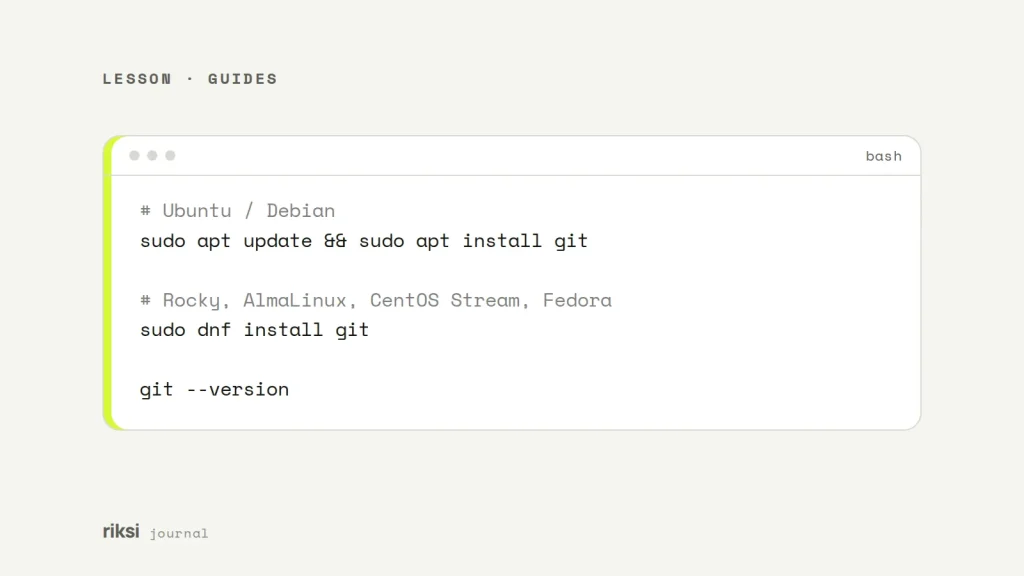
# Ubuntu / Debian
sudo apt update && sudo apt install git

# Rocky, AlmaLinux, CentOS Stream, Fedora
sudo dnf install git

git --version
Set your name and email once on each machine you commit from, so your commits are labelled properly. Run git config --global user.name "Your Name" and git config --global user.email "[email protected]". That’s the shortest step in this guide, so enjoy it.
2. Connect with SSH keys, not passwords
On your own computer, create a key if you don’t have one. Then copy it to the server. A key pair works like a padlock and its key. The server gets the padlock, and your computer keeps the key.
ssh-keygen -t ed25519 -C "[email protected]"
ssh-copy-id [email protected]
ssh [email protected]   # should log in without a password
I’d use a separate deploy user that owns the site files, not root. Once keys work, turn off password logins in /etc/ssh/sshd_config (PasswordAuthentication no). That stops a whole type of attack, like password guessing.
3. Option A: push to the server
On the server, create a bare repository outside the web root. A bare repository holds only the history, with no working files. It remembers every commit, but it has no project files you can open.
mkdir -p ~/repos/site.git && cd ~/repos/site.git
git init --bare --initial-branch=main
Next, add the hook. It runs after every push and checks out the main branch into the live folder. Create ~/repos/site.git/hooks/post-receive with this content.
#!/bin/sh
TARGET=/var/www/example.com
GIT_DIR=/home/deploy/repos/site.git
BRANCH=main

while read oldrev newrev ref; do
  if [ "$ref" = "refs/heads/$BRANCH" ]; then
    git --work-tree="$TARGET" --git-dir="$GIT_DIR" checkout -f "$BRANCH"
    echo "Deployed $BRANCH to $TARGET"
    # e.g. cd "$TARGET" && composer install --no-dev --optimize-autoloader
  fi
done
Then make the hook executable.
chmod +x ~/repos/site.git/hooks/post-receiveOn your computer, add the server as a remote and push.
git remote add live [email protected]:repos/site.git
git push live main
The .git folder never ends up in the web root, because the history stays in the bare repository.
Be careful: checkout -f overwrites files that the repository tracks. So Git must ignore uploads and any config files that differ per server. Leave those files in place on the server.
4. Option B: pull from GitHub or GitLab
If the repository is hosted somewhere else, create a key on the server. Add it to the repository as a read-only deploy key. A read-only key is like a library card. The server can borrow the code, but it can’t write in it. On GitHub, go to Settings → Deploy keys. On GitLab, go to Settings → Repository → Deploy keys.
ssh-keygen -t ed25519 -f ~/.ssh/deploy_site -N ""
cat ~/.ssh/deploy_site.pub       # paste this into the deploy key settings

git clone [email protected]:example/site.git /var/www/example.com
# later, to deploy:
cd /var/www/example.com && git pull --ff-only
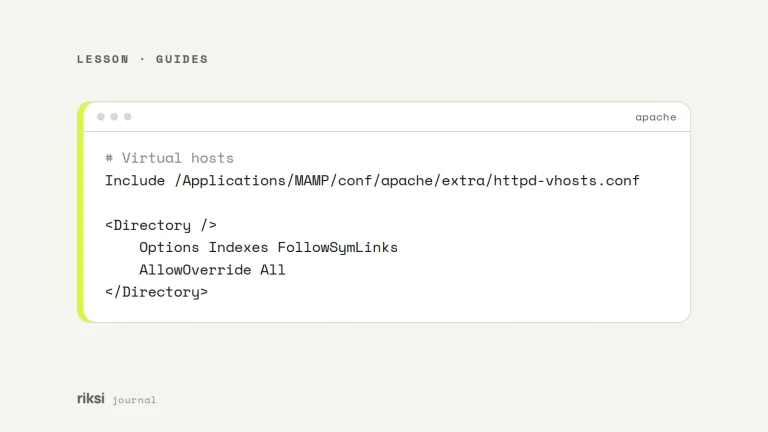
With a clone in the web root, block public access to the .git folder in the server config. If you don’t, anyone can download your source code and history. I wouldn’t skip this step. On Apache, use RedirectMatch 404 /\.git.
Next steps
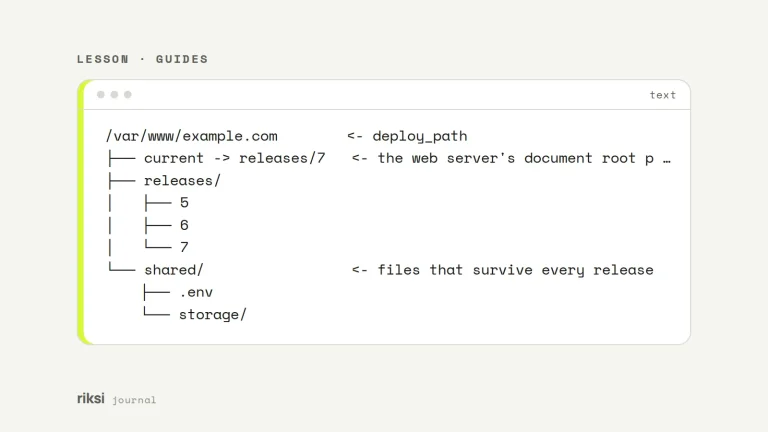
Both options update files in place. So for a few seconds, the site can be half old and half new. Tools such as Deployer build each release in its own folder, then switch a symlink when it’s ready. CI services such as GitHub Actions or GitLab CI can run tests and then deploy over SSH automatically.
Still, I think the hook above is the smallest step up from FTP, and a good one. I’d get it working on a staging site first. Then you can stop dragging files into an FTP window.
Comments
No comments yet. Questions, fixes and better ways are all welcome.