Trick 02 Tricks & hacksTerminal
How to copy a remote folder to your computer with rsync
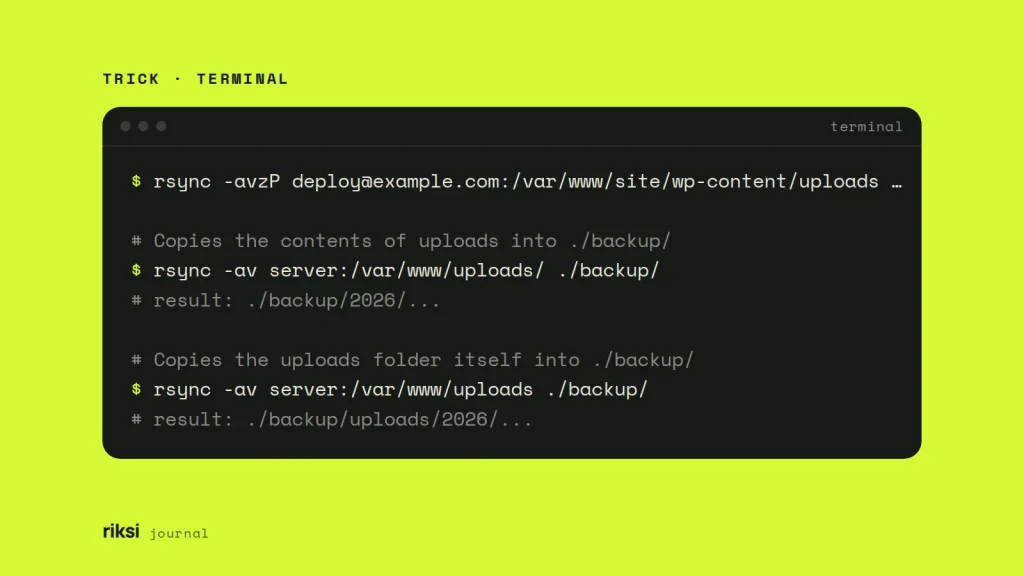
You need a copy of a folder from a server, and you don’t want to download all of it again next time. To copy a folder from a server to your computer, run rsync -avz user@server:/path/to/folder/ ./folder/. rsync connects over SSH and copies everything the first time. On later runs, it only sends the files and parts of files that have changed.
rsync -avzP [email protected]:/var/www/site/wp-content/uploads/ ./uploads/So it’s good for pulling a site’s uploads folder down to a local copy. It also suits a quick backup, or refreshing a staging folder without downloading gigabytes you already have.
What each option does
| Option | What it does |
|---|---|
-a |
Archive mode. Copies folders recursively and keeps symlinks, permissions and modification times. It already includes -r, so -ar is not needed. |
-v |
Lists each file as it is transferred. |
-z |
Compresses data in transit. It helps with text files like SQL dumps, CSS and logs. It does little for images and zip files. |
-P |
Short for --partial --progress. Shows progress for each file and keeps partly transferred files, so an interrupted copy can resume. |
-n |
Dry run. Shows what would be transferred without changing anything. |
I’d use -avzP for most jobs. You can see the progress, and a dropped connection doesn’t mean starting again.
The user@host:/path form, with a single colon, means “connect over SSH”. A double colon (host::module) means something else. It connects to an rsync daemon, a separate service that most web servers don’t run. If you see :: together with -e ssh in an old snippet, it’s a mistake. One colon too many, and rsync goes looking for a service that isn’t there.
The trailing slash rule
A slash at the end of the source path changes what gets copied.
# Copies the contents of uploads into ./backup/
rsync -av server:/var/www/uploads/ ./backup/
# result: ./backup/2026/...

# Copies the uploads folder itself into ./backup/
rsync -av server:/var/www/uploads ./backup/
# result: ./backup/uploads/2026/...
I read the trailing slash as “the contents of”. Without it, rsync copies the box. With it, rsync copies what’s in the box. A slash on the destination makes no difference. So when you want the two folders to match, end both paths with a slash.
Always do a dry run first
Add -n (or --dry-run) to see exactly what would happen. Add -i (--itemize-changes) as well, and it also tells you why each file would be sent:
rsync -avzni [email protected]:/var/www/site/ ./site/Yes, that means running the command twice. The first run only looks and never changes a file. This matters most with --delete. That option removes files from the destination that no longer exist in the source, so the two folders match exactly. It’s useful for a true mirror, but dangerous if you swap the source and destination. An upload with --delete in the wrong direction deletes files on the live server. My advice is to run it with -n first, read the list, then run it for real.
Custom SSH ports, keys and exclusions
For a non-standard SSH port or a specific key, pass SSH options with -e.
rsync -avzP -e 'ssh -p 2222 -i ~/.ssh/id_ed25519' [email protected]:/var/www/site/ ./site/Skip folders you don’t need with --exclude. Patterns are matched relative to the source folder. A trailing slash matches folders only. Slashes matter here too. rsync reads every one of them.
rsync -avzP --exclude='cache/' --exclude='node_modules/' --exclude='*.log' \
  [email protected]:/var/www/site/ ./site/
For a longer list, put one pattern per line in a file and use --exclude-from=.rsync-exclude.
If you connect to the same server often, I’d add an entry to ~/.ssh/config. It keeps the command short, and it works for ssh, scp and rsync:
Host staging
  HostName staging.example.com
  User deploy
  Port 2222
  IdentityFile ~/.ssh/id_ed25519
Then use the short name in the command.
rsync -avzP staging:/var/www/site/wp-content/uploads/ ./uploads/Uploading works the same way
To push files to the server, swap the order so the local folder comes first. For example, rsync -avzP ./dist/ staging:/var/www/site/. The source is always the first path. Check it twice before you add --delete.
rsync on a Mac and on the server
rsync has to be installed at both ends. Most Linux servers have it, but some shared hosts don’t. For an occasional copy there, scp -r or SFTP will do.
On macOS, check what you have with rsync --version. From macOS Sequoia 15.4, /usr/bin/rsync is Apple’s openrsync, which supports only some of rsync’s options. Before that, Apple shipped rsync 2.6.9 from 2006.
The everyday flags in this post work with both. Newer options need the current version. One example is --info=progress2, which shows one overall progress bar instead of one per file. Install it with brew install rsync. Then make sure Homebrew’s folder comes first in your PATH, the list of folders your shell searches for commands.
For most jobs, the first command in this post is all you need. I’d add -n whenever you’re not sure what will happen, and always before --delete. After that, let rsync do the dull part. It never gets tired of comparing files.
Comments
No comments yet. Questions, fixes and better ways are all welcome.