Trick 03 Tricks & hacksTerminal
How to add a folder to your $PATH on Mac (zsh and bash)
You’ve installed a tool, typed its name, and Terminal says command not found. The fix is to add its folder to your PATH. On a modern Mac, I add a line like export PATH="$HOME/.local/bin:$PATH" to ~/.zprofile. Then open a new Terminal window. If you only type export at the prompt, it changes just that one window.
What is PATH?
PATH is an environment variable. It holds a list of folders, separated by colons. When you type a command such as php, the shell checks each folder from left to right. It runs the first match it finds. If no folder contains it, you get command not found. It’s like checking a row of drawers for your keys. You stop at the first drawer that has them.
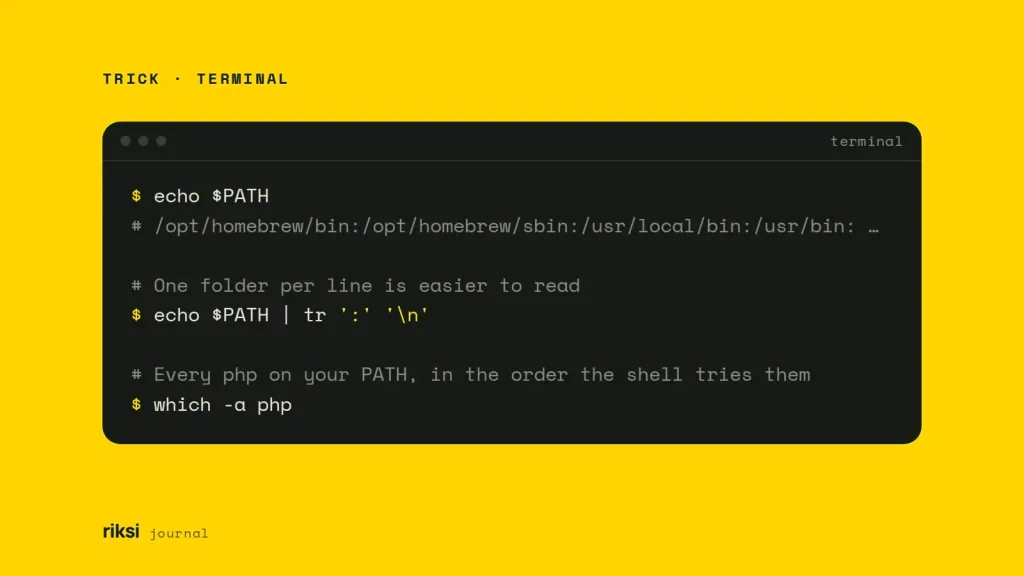
echo $PATH
# /opt/homebrew/bin:/opt/homebrew/sbin:/usr/local/bin:/usr/bin:/bin:/usr/sbin:/sbin

# One folder per line is easier to read
echo $PATH | tr ':' '\n'

# Every php on your PATH, in the order the shell tries them
which -a php
The first match wins, so order matters. Put a folder at the front to override a version that macOS or Homebrew already provides. Put it at the end if it should only be a fallback.
Which file should you edit?
zsh has been the default shell for new Mac accounts since macOS Catalina (10.15). An account carried over from an older Mac may still use bash. So I’d check first.
echo $SHELL
# /bin/zsh
Each shell reads its own startup files.
~/.zprofile(zsh) runs for login shells. Terminal opens a login shell for every new window and tab, so this is the natural home for PATH.~/.zshrc(zsh) runs for every interactive shell. It also works for PATH, and it’s the usual place for aliases and prompt settings.~/.bash_profile(bash) runs for login shells, which is what Terminal starts.
I prefer to keep PATH in ~/.zprofile and leave ~/.zshrc for aliases and the prompt. Each file then has one clear job.
Avoid ~/.zshenv for PATH on a Mac. It runs first. Then the system file /etc/zprofile runs path_helper, which rebuilds PATH with the system folders at the front. So a folder you tried to put first ends up behind /usr/bin. path_helper means well, but it only knows one order. The system folders go first.
Add a folder for your user
Open the file in an editor. nano creates the file if it doesn’t exist yet.
nano ~/.zprofileAdd a line at the end. Save with Ctrl+O and Enter, then exit with Ctrl+X. Yes, nano’s keys are a bit odd. It lists them along the bottom of the screen, so you don’t have to remember them.
export PATH="$HOME/.local/bin:$PATH"Load it into the current window, or just open a new one.
source ~/.zprofileA few details matter here. If you only remember one of them, make it the first.
- Always include
$PATH. On its own,export PATH="/some/folder"replaces the whole list. Then basic commands likelsstop working. If that happens, runexport PATH="/usr/bin:/bin:/usr/sbin:/sbin"in that window to get your tools back. Then fix the file. - Use
$HOME, not~, inside quotes. The shell doesn’t expand a tilde inside double quotes, so"~/bin"is taken literally. - Put the new folder first or last.
"$HOME/bin:$PATH"takes priority over everything else."$PATH:$HOME/bin"is only used when nothing earlier matches.
A Homebrew example
Homebrew lives in /opt/homebrew on Apple silicon Macs and in /usr/local on Intel Macs. Its installer asks you to add eval "$(/opt/homebrew/bin/brew shellenv)" to ~/.zprofile. That sets up PATH for Homebrew itself.
Some formulae, such as mysql-client, are “keg-only”. That means Homebrew doesn’t link them into that folder, so you add them yourself.
echo 'export PATH="/opt/homebrew/opt/mysql-client/bin:$PATH"' >> ~/.zprofileThe single quotes keep $PATH as plain text in the file. So it’s expanded each time a shell starts, instead of being frozen at today’s value.
A tidier zsh option
zsh keeps a copy of PATH in an array called path. If you mark it unique, duplicates don’t pile up when a file is loaded more than once. I find this easier to read than one long export line.
typeset -U path PATH
path=("$HOME/.local/bin" $path)
Add a folder for every user with /etc/paths.d
export never writes to any file. It only changes the current shell. It has a short memory. Close the window, and the change is gone. The system-wide defaults live in /etc/paths. path_helper also adds every folder listed in the files inside /etc/paths.d.
To add a folder for every user on the Mac, create a new file in /etc/paths.d. Don’t edit /etc/paths itself. A separate file is easy to undo.
echo "/usr/local/mysql/bin" | sudo tee /etc/paths.d/mysqlIt takes effect in new Terminal windows. These folders are added after the ones in /etc/paths. So this method can’t override a tool that macOS already ships. For that, and for anything personal, use ~/.zprofile. I only use /etc/paths.d when every account on the Mac needs the tool.
When it still doesn’t work
- The command is still not found. Open a new window, or run
rehash(zsh) orhash -r(bash). This clears the shell’s memory of where commands live. - The wrong version runs.
which -ashows every match in order. Move your folder earlier in PATH. - An app ignores your PATH. Apps opened from the Dock or Finder don’t read your shell files. Launch the editor from Terminal (for example
code .), or set the tool path in the app’s own settings.
Once it works, I’d run which -a yourcommand in a new window. It’s the quickest way to confirm your folder is where you expect in the list. When your folder shows up there, “command not found” has nothing left to say.


Comments
No comments yet. Questions, fixes and better ways are all welcome.