Password-protect a folder with .htaccess and .htpasswd
You need to keep a folder private, like a staging site, without building a login system. Create a .htpasswd file of usernames and hashed passwords with the htpasswd tool. Then add four lines to the folder’s .htaccess that point to it. The browser will ask for a username and password before it shows anything in that folder.
This works on Apache servers. I use it for staging sites, client previews and admin tools.
1. Create the password file
The htpasswd tool comes with Apache, and with MAMP and XAMPP. Use -B for bcrypt, the strongest format Apache supports.
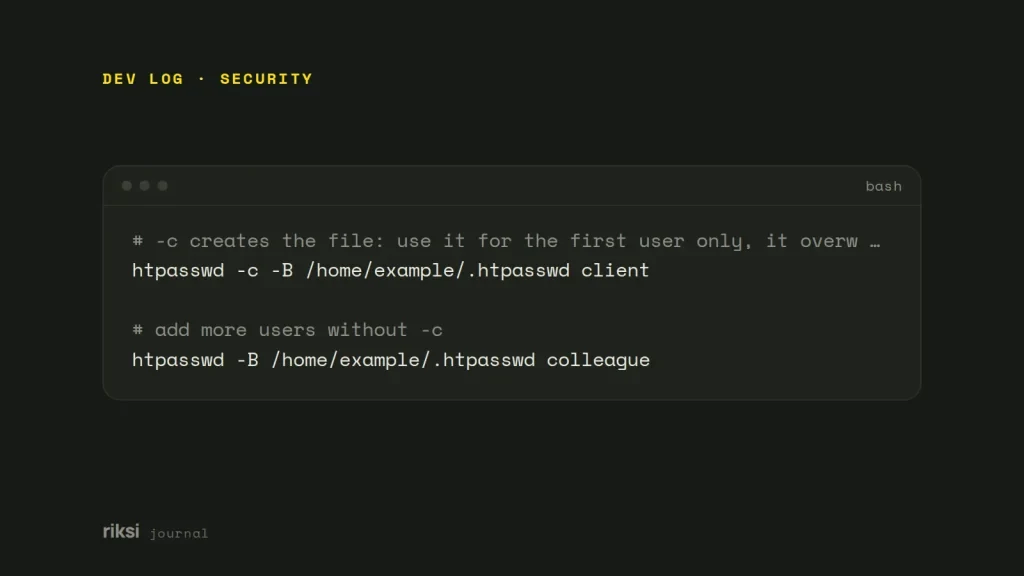
# -c creates the file: use it for the first user only, it overwrites an existing file
htpasswd -c -B /home/example/.htpasswd client

# add more users without -c
htpasswd -B /home/example/.htpasswd colleague
Each line of the file is username:hash, and bcrypt hashes start with $2y$. It’s a user database in its plainest form, one line per person. Older tutorials use SHA-1 or MD5 hashes here. They still work, but they are far easier to crack if the file ever leaks. So I see no reason to use them today.
If your host has no shell access, most control panels have a “Directory Privacy” or “Password Protect Directories” screen that writes both files for you.
Keep .htpasswd outside the public folder, for example in your home directory, not in public_html. By default, Apache refuses to serve files that start with .ht. But keeping the file out of reach is safer still. I’d do this on every site.
2. Add the rules to .htaccess
In the folder you want to protect, create or edit .htaccess.
AuthType Basic
AuthName "Restricted area"
AuthUserFile /home/example/.htpasswd
Require valid-userAuthUserFileneeds the full server path, not a URL. If you don’t know it, make a temporary PHP file with<?php echo __DIR__; ?>. It prints the folder’s path.AuthNameis the label some browsers show in the login box.Require valid-userlets in anyone listed in the file.Require user clientlets in only that user.
The protection covers the folder and everything below it. Think of it as a lock on the front door, not on each room.
If you get a 500 error, the server doesn’t allow login rules in .htaccess. The setting it needs is AllowOverride AuthConfig. Ask your host, or put the same lines in the site’s virtual host config.
3. Use HTTPS
Basic authentication sends the username and password with every request. They’re only base64-encoded, and that’s not encryption. Over plain HTTP, anyone on the same network can read them. Only use it on sites served over HTTPS.
Protect one file, or let some visitors through
# Only protect a single file
<Files "report.pdf">
  AuthType Basic
  AuthName "Restricted"
  AuthUserFile /home/example/.htpasswd
  Require valid-user
</Files>

# Let the office network in without a password, ask everyone else (Apache 2.4)
<RequireAny>
  Require ip 203.0.113.0/24
  Require valid-user
</RequireAny>
WordPress sites
This is how I’d protect a whole staging site. It keeps visitors and search engines out.
If you only protect /wp-admin/, let admin-ajax.php through. The front end of many sites calls it. Yes, the public side needs a file from the admin folder. WordPress is like that sometimes.
<Files "admin-ajax.php">
  Require all granted
</Files>
On Nginx
Nginx doesn’t read .htaccess. Leaving these rules there is like leaving a note for someone who never reads notes. Create the same .htpasswd file and add this to the server block. Then reload Nginx.
location /private/ {
    auth_basic           "Restricted area";
    auth_basic_user_file /etc/nginx/.htpasswd;
}
Check it worked
- Open the folder in a private browser window. You should see a login box.
- Try a wrong password and make sure it’s refused.
- Log in with the right one and check the page loads over HTTPS.
Run this check every time you change the rules. It only takes a minute. Your normal browser remembers the password, so the folder will always look fine to you.


Comments
No comments yet. Questions, fixes and better ways are all welcome.