Migrate a WordPress site from local to live
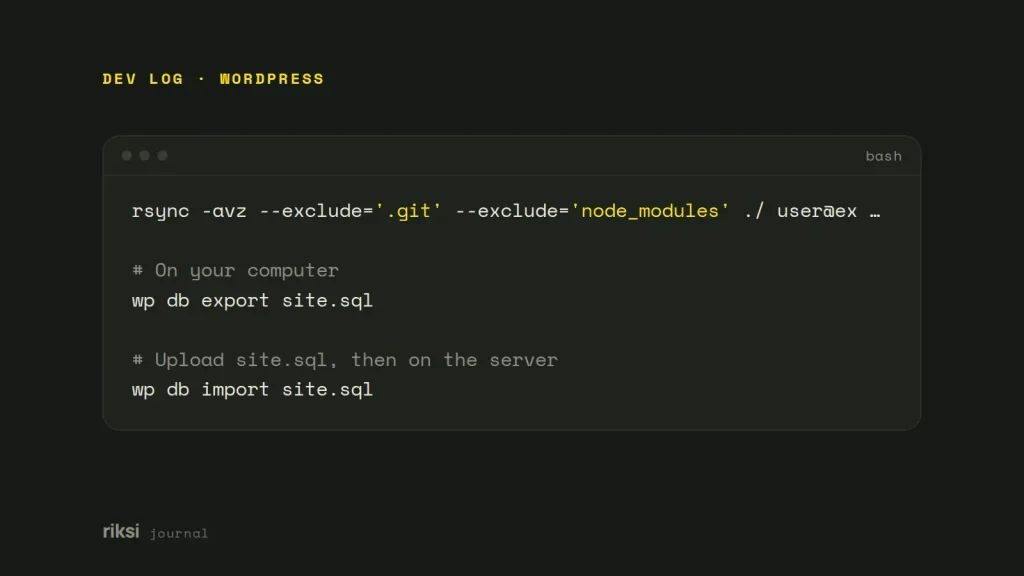
Your site works on your computer, and now it needs to go live. Moving WordPress from your computer to a live server takes four steps. Copy the files, copy the database, change every stored URL to the live one, and point wp-config.php at the new database.
The URL change is the step people get wrong. A plain SQL REPLACE breaks serialized data. My advice is to use the search-replace command in WP-CLI (the WordPress command-line tool), or a migration plugin.
Before you start
- Make sure the live server runs a PHP version your site supports. It needs the same extensions too (
mysqli,gdorimagick,intl,zip). - Create an empty database and a database user on the live server. Note the host, name, user and password.
- Get SSH access if you can. I’d do every step below with WP-CLI, because it’s faster and safer.
- If the live domain already hosts a site, take a full backup of it first.
Yes, the backup is the dull part. It’s also the one step you can’t do once the old site is overwritten.
1. Copy the files
Upload the whole WordPress folder. Include wp-content/uploads and the hidden .htaccess file. Hidden files are only hidden from you. The server still needs them. Over SSH, rsync is the option I prefer. It’s quick, and you can run it again to pick up changes.
rsync -avz --exclude='.git' --exclude='node_modules' ./ [email protected]:/var/www/example.com/SFTP works too. Check that hidden files were included, and that nothing timed out part-way through the uploads folder.
2. Export and import the database
# On your computer
wp db export site.sql

# Upload site.sql, then on the server
wp db import site.sql
Without WP-CLI, export from phpMyAdmin or Adminer on your computer. Then import the file into the new database on the server. Keep the table prefix the same as the $table_prefix in wp-config.php.
3. Update wp-config.php
Point WordPress at the live database. Also make fresh salts for the live site at https://api.wordpress.org/secret-key/1.1/salt/. Salts are the random security keys in wp-config.php.
define( 'DB_NAME', 'live_db' );
define( 'DB_USER', 'live_user' );
define( 'DB_PASSWORD', 'a-long-random-password' );
define( 'DB_HOST', 'localhost' );

define( 'WP_DEBUG', false );
If you’ll keep working locally, I cover running WordPress on local, staging and live.
4. Replace the URLs safely
WordPress stores the full site address all over the database. It’s in siteurl and home, in post content, and in widget and theme settings.
Many of those values are serialized PHP arrays. Serialized data records the length of every string. It’s like a crossword with a set number of squares for each answer. A longer word no longer fits. If you change http://mysite.test to https://example.com with a plain SQL REPLACE, those lengths become wrong. WordPress then silently throws the setting away. That’s why widgets and theme options sometimes vanish after a migration.
WP-CLI’s search-replace understands serialized data. I always run it with --dry-run first to see what it’ll change.
wp search-replace 'http://mysite.test' 'https://example.com' --all-tables --skip-columns=guid --dry-run
wp search-replace 'http://mysite.test' 'https://example.com' --all-tables --skip-columns=guid
wp cache flush
Skipping the guid column is on purpose. GUIDs identify posts in feeds, and they shouldn’t change once a post is published.
If you have no shell access, use a migration plugin such as WP Migrate or Duplicator. It does the same serialization-safe replacement for you.
5. Check everything
- Go to Settings → Permalinks and click Save. This rebuilds the rewrite rules.
- Log in, open a few posts and pages, and check images, menus and widgets.
- Search the page source for the old local address. Anything left over is usually hard-coded in the theme.
- Turn on HTTPS. Redirect
http://and thewww(or non-www) version to one address. - In Settings → Reading, make sure “Discourage search engines” is unticked on the live site.
- Test forms and email. Live servers often need SMTP set up before mail is delivered.
If you only check one thing after the move, make it that search engine setting. If it was ticked on your computer, it came across with the database. WordPress doesn’t know the site is live now. If you’d rather hand the move to someone else, that’s part of what I do.


Comments
No comments yet. Questions, fixes and better ways are all welcome.