Trick 01 Tricks & hacksTerminal
How to create a symlink to a folder on Linux and Mac
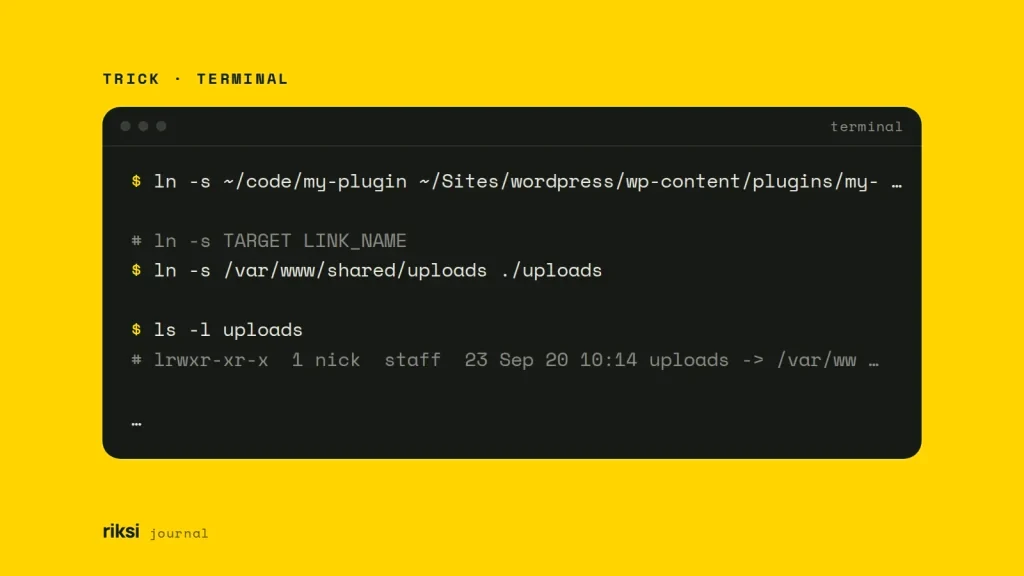
You want a folder to show up in a second place without copying it. To make a symlink to a folder on Linux or macOS, run ln -s /path/to/real-folder /path/to/link. The real folder comes first and the new link comes second. After that, anything that opens the link goes to the real folder.
ln -s ~/code/my-plugin ~/Sites/wordpress/wp-content/plugins/my-pluginA symlink (symbolic link) is a tiny file that stores a path. It works like a Windows shortcut, with one big difference. Programs follow it, not only the file manager. Your editor, PHP, Node, Apache and Git all treat the linked folder as if it lived at the link’s location.
The example above is common in local development. The plugin stays in its own Git repository, and your local WordPress runs the code you’re editing. It’s how I prefer to work on plugins.
Get the argument order right
Most symlink mistakes come from swapping the two arguments. My advice is to read the command as “link to this, called that”. The command doesn’t check that the target exists. It will happily make a link to nothing.
# ln -s TARGET LINK_NAME
ln -s /var/www/shared/uploads ./uploads
Two behaviours often surprise people. If you leave out the link name, ln creates a link in the current folder with the same name as the target. If the link name is an existing directory, ln creates the new link inside that directory. It doesn’t replace it.
To check a link, use ls -l or readlink.
ls -l uploads
# lrwxr-xr-x  1 nick  staff  23 Sep 20 10:14 uploads -> /var/www/shared/uploads

readlink uploads
# /var/www/shared/uploads
The l at the start of the permissions tells you it’s a link. The arrow shows where it points.
Absolute or relative target?
The target is stored exactly as you type it. An absolute path, such as /Users/nick/code/site, keeps working if you move the link. But it breaks if the real folder moves. It also breaks if someone clones the project onto a machine with a different home folder.
A relative target is resolved from the folder that contains the link. It isn’t resolved from the folder where you ran the command. An absolute target is like a full street address. A relative one is like “two doors down”, which depends on where the link lives.
cd ~/Sites/project/public
ln -s ../storage/app/public storage
# public/storage -> ../storage/app/public
That link still works if you move, rename or check out the whole project somewhere else. So I use relative targets for links inside a project or repository. I use absolute targets for system-wide links, such as a web server config that points at a site folder.
On Linux, GNU ln can work out the relative path for you with ln -sr. The BSD ln on macOS has no -r option, so on a Mac you write the relative path yourself.
Point an existing link somewhere else
Running ln -s again with a link name that already exists does not replace the link. If the old link points to a file, you get “File exists”. If it points to a folder, ln follows it and silently creates the new link inside that folder.
To repoint a link, add two flags. -f replaces the old link. -n tells ln to treat the old link as a plain file and not follow it. It’s a small trap, and the way out is only two letters long.
ln -sfn ~/code/my-plugin-v2 ~/Sites/wordpress/wp-content/plugins/my-pluginBoth GNU ln on Linux and BSD ln on macOS understand -sfn. If you leave out the -n, you end up with a stray link inside the old target folder again. I’d make -sfn a habit whenever you repoint a link.
Remove the link, not the folder
To remove a link, delete the link name. This removes only the link. It never removes the folder it points to.
rm my-plugin
# or
unlink my-plugin
Leave off the trailing slash. my-plugin/ means “the folder behind the link”. So rm -r my-plugin/ can delete the real files you meant to keep. Never use -r when you remove a link. This is the mistake that can cost you real files.
A link whose target was moved or deleted is a broken (or dangling) link. Here is how to find them.
# Linux (GNU find)
find . -xtype l

# macOS
find -L . -type l
When a symlink is not followed
If a link works in the terminal but not in a browser or container, check these. The shell follows a link without asking questions. Servers and containers have more rules.
- Apache settings. Apache follows links inside a site only when
Options FollowSymLinksis on for that directory. The stricterSymLinksIfOwnerMatchalso works. - Permissions. The web server user needs read and execute permission on every folder along the real path, not only on the link. A target inside a private home folder often fails for this reason.
- Docker bind mounts. A bind mount shares a folder on your machine with a container. A link that points outside the mounted folder points at nothing inside the container. Mount the real folder instead.
- Finder aliases. An alias you make in the macOS Finder is not a symlink. Terminal tools and servers can’t follow it, so create links with
ln -s. - Hard links.
lnwithout-smakes a hard link. Neither Linux nor macOS lets you hard-link a directory, so for folders you always need-s.
Use symlinks for deployments
Symlinks are also useful for deployments. Keep each release in its own folder and point a current link at the live one. Then switching or rolling back is a single ln -sfn.
I use this pattern when I build custom WordPress sites. Those builds also get a shared uploads link, so media files survive every deploy.
If symlinks are new to you, I’d practise in a test folder first. Run ls -l after each step and you’ll see what changed. After that, let your folders live in two places at once. They won’t mind.


Comments
No comments yet. Questions, fixes and better ways are all welcome.