Guide 14 GrowSite upgrades
Connect HubSpot to Xero: invoices and contacts in sync
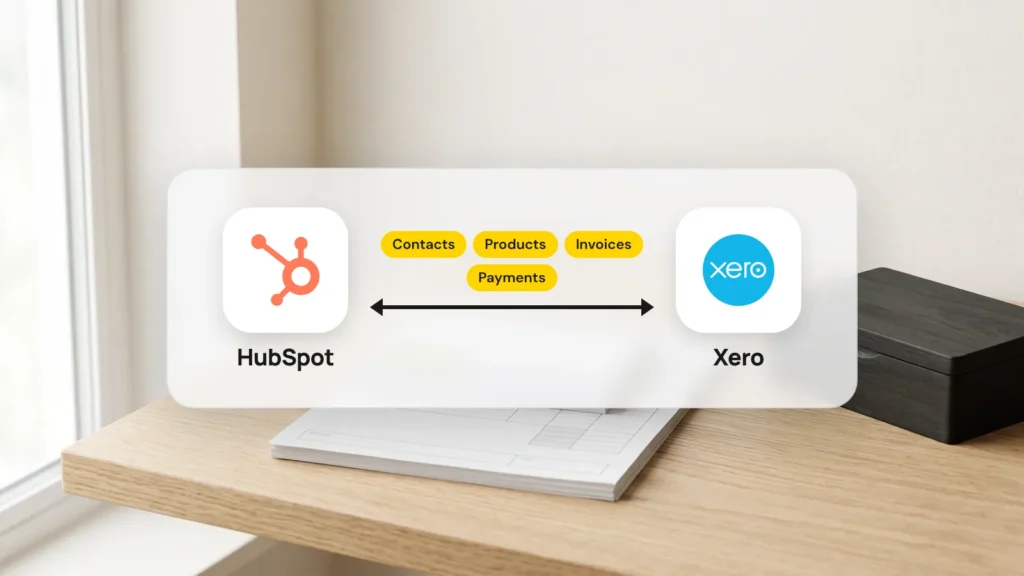
The easiest way to connect HubSpot to Xero is HubSpot’s own app, Xero by HubSpot (Data Sync). It’s free and works on every HubSpot plan. It syncs (copies changes between the two apps) contacts, products, invoices and payments. You still need a paid Xero subscription.
By the end of this guide, deals in HubSpot will turn into Xero invoices, and payments will flow back. A deal is a possible sale you track in HubSpot. I’d set aside about an hour for setup. Cleaning your contacts first can take longer, and I think it’s worth it.
You need Super Admin or App Marketplace permissions in HubSpot. You also need two-factor login turned on.
Learn what syncs, and which way
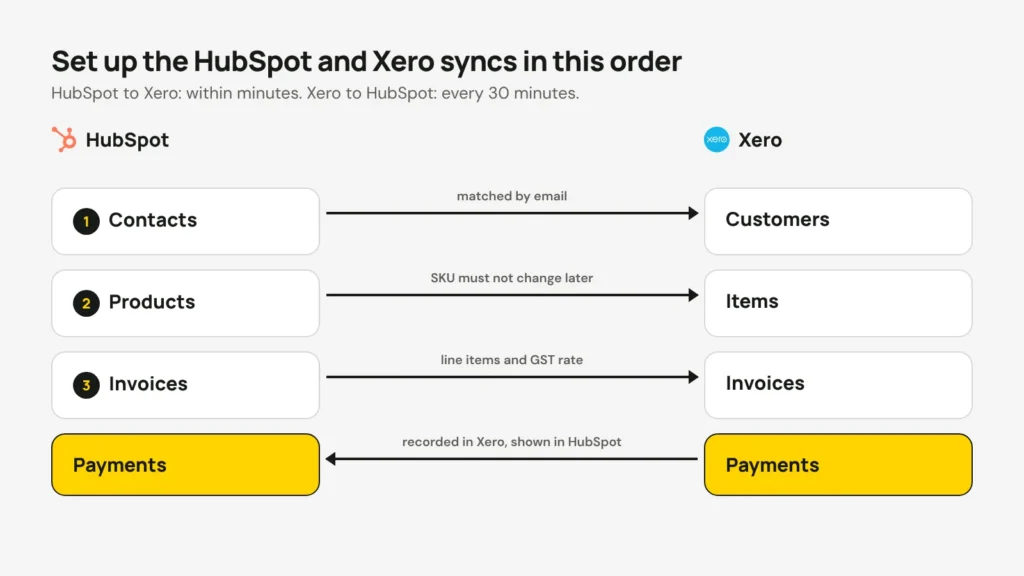
You choose a direction for each type of record. Contacts, products and invoices can sync one way or both ways. Payments come from Xero into HubSpot, or go both ways.
- Contacts in HubSpot match customers in Xero.
- Products in HubSpot match items in Xero.
- Invoices sync with every product line on them.
- Payments recorded in Xero show on the invoice in HubSpot.
Changes from HubSpot reach Xero within minutes. Changes from Xero come back every 30 minutes. So if a customer pays and your sales team can’t see it yet, nothing is broken. It’s waiting for the next bus.
A few things don’t sync. Quotes stay in HubSpot. The app only handles six currencies: AUD, NZD, USD, CAD, EUR and GBP. To match your own extra fields, you need Data Hub Starter or a higher paid HubSpot plan.
Clean your contacts before you connect
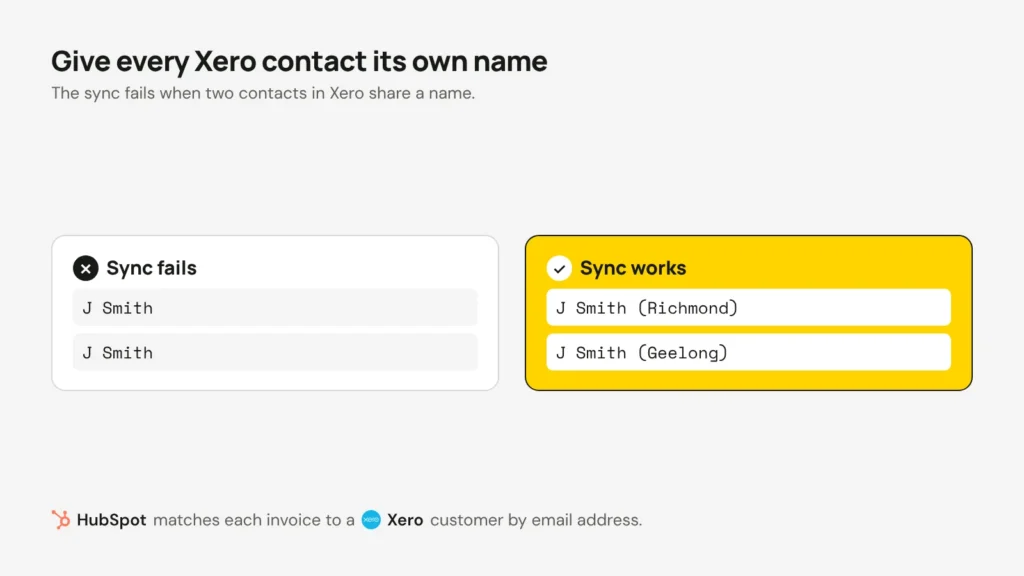
The sync matches the contact on each invoice to a Xero customer by email address. It also needs every contact name in Xero to be different, or the sync fails. Two customers called “J Smith” will cause trouble.
- Export your contacts from Xero and HubSpot as CSV files (spreadsheets).
- Merge any doubles, and fill in missing email addresses.
- Rename any Xero contacts that share a name. For example, add the company or suburb.
If HubSpot is new to you, start with what a CRM does. Clean data there makes every step after this easier.
Install the app and set up the syncs
- In HubSpot, click the Marketplace icon in the top bar, then HubSpot Marketplace.
- Search for Xero by HubSpot (Data Sync) and click Install.
- Log in to Xero and click Accept.
- Click the settings icon, then go to Integrations → Connected Apps → Xero → CRM syncs.
- Set up the contact sync first, then the product sync, then the invoice sync.
Each sync has three steps. First you pick the direction, which app wins when they disagree, and the fields. Then you can choose which records sync. Last, you check everything and click Save and sync.
I’d make one app the boss for each type of record. For most businesses, HubSpot owns contacts and invoices, and Xero owns payments. Two-way syncs are great, until both apps disagree about someone’s phone number.
Set up invoices, GST and payments
- Create invoices from a deal in HubSpot. The invoice list is under More → Revenue → Invoices.
- Edit HubSpot invoices in HubSpot only. Editing them in Xero breaks the sync.
- Xero’s tax rates come into HubSpot, so pick the GST rate on each product line. Tax rates you create in HubSpot don’t go to Xero.
- Don’t change a product’s SKU (its product code) once it’s on a synced invoice. HubSpot then blocks that invoice.
- Only payments made after you connect will sync. Card fees don’t sync, so record them in Xero by hand.
HubSpot’s own payments only work in the US, UK and Canada, at the time of writing. In Australia, you can take card payments on the Xero invoice instead. One of Xero’s payment services, such as Stripe, does this. I cover it in connecting Stripe to Xero. The payment then syncs back to HubSpot.
Know when you need more than the free app
The free app covers the basics for most small teams. Its reviews are mixed, though. On the HubSpot Marketplace it’s rated 2.2 out of 5. People mention tax rates that don’t match and connections that drop.
A paid app like Invoice Stack adds deposits, repeating invoices and Xero tracking categories (labels for things like branches or projects). It has a 21-day free trial. A custom integration (a connection built just for your business) is worth it when you need:
- Quotes to sync, or company records handled your way.
- A currency outside the six, or more than one Xero business.
- Invoices made for you when a deal reaches a certain stage.
- Card fees, tracking categories or your own rules for conflicts.

Xero allows each business 60 requests a minute and 5,000 a day, so a custom sync has to pace itself. We build custom Xero integrations for the jobs the free app can’t do.
Check it after the first week
- Make a test deal, turn it into an invoice, and check it reaches Xero with the right GST.
- Record a payment on it in Xero. It should show in HubSpot within about 30 minutes.
- Look at the app’s status under Connected Apps each week, so you notice if the connection drops.
- Ask your bookkeeper to check the first month’s invoices before your BAS.
Want to know what the sync is worth to you? Put in your own numbers.
These are your own estimates. A working day here is 7.6 hours. The sync still needs a short check each week.
Once it runs, your sales team stops asking “has this one paid?” and your bookkeeper stops retyping invoices. That alone pays for the hour of setup.
Opens in a new tab


Comments
No comments yet. Questions, fixes and better ways are all welcome.