Guide 12 GrowSite upgrades
Connect Shopify to Xero: your options, step by step
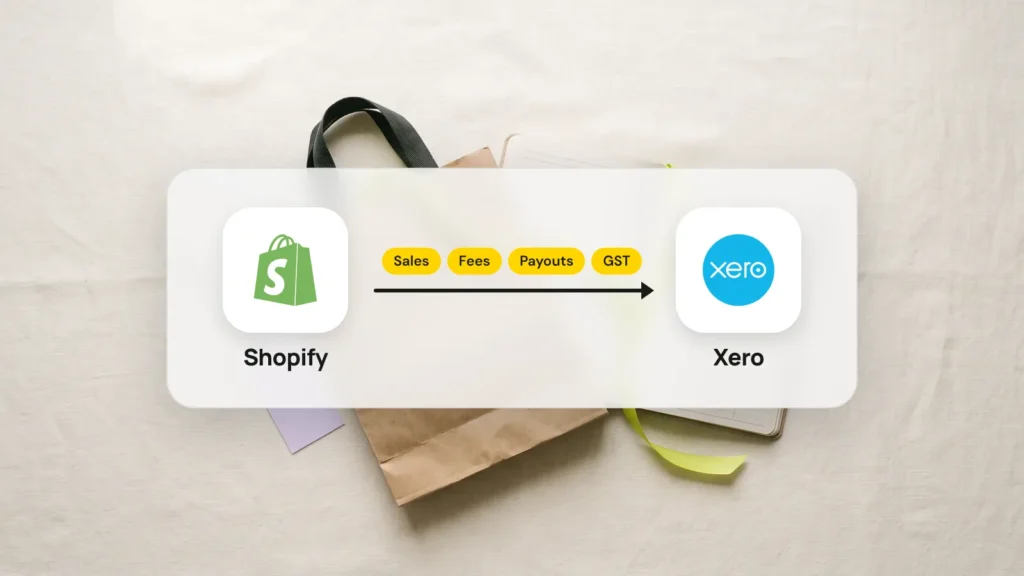
Most Australian Shopify shops can connect to Xero with Xero’s free Shopify app. It sends your sales, fees, taxes and payouts into Xero, so most of your bookkeeping happens by itself. Running more than one store? Then a paid tool like A2X or Link My Books fits better.
By the end of this guide, Shopify and Xero will share their numbers. You’ll also know how payouts and GST should look, so Xero matches your bank. It takes about an hour. You need a Xero subscription and the owner login for your Shopify store.
Decide how your sales go into Xero
Before you install anything, choose one of two styles. Xero’s app can send a daily summary of your sales, or every single order. It covers your online store and Shopify POS (point of sale, for selling in person).
- Daily summary. One entry a day for each way customers paid, such as Shopify Payments or PayPal. I’d pick this for most shops.
- Individual sales. One invoice for each order, with every product on it. Choose this if your accountant needs that detail.
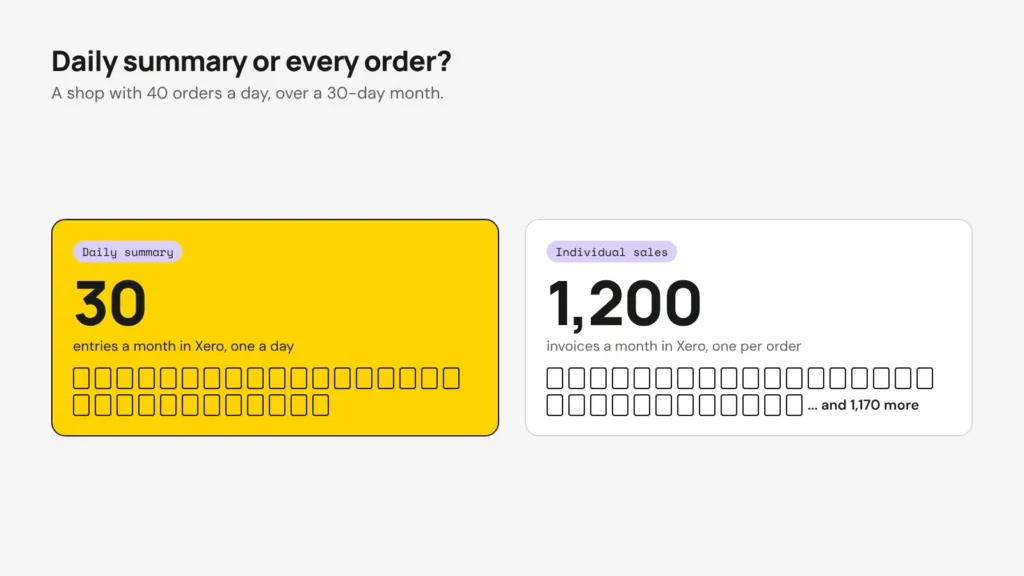
There’s one problem with individual sales. A shop with 40 orders a day makes about 1,200 invoices a month. Xero will happily keep them all. Your bookkeeper may be less happy about it.
Connect Xero’s free Shopify app
Start in Xero, not in Shopify. Shopify’s App Store lists the Xero app as not available, so install it from the Xero App Store. That listing says the app is free on all Xero plans, at the time of writing.
- In the Xero App Store, search for Shopify integration by Xero and choose Get this app.
- Sign in to Shopify with the store owner account and allow the connection.
- Choose a daily summary or individual sales for each way customers pay.
- Match each Shopify tax to the right GST rate in Xero.
- Pick a start date. The app can bring in up to 90 days of past sales.
I’d start on the first day of a GST quarter. Then your BAS (the business activity statement you send the tax office) covers one clean period. If you get stuck, the listing says Amaka, an integration company, gives setup help.
Get payouts, fees and GST right
This is the part that confuses most owners. A payout is the money Shopify Payments sends to your bank. It isn’t your sales total. It’s your sales minus the fees, paid a few days later in one amount.
A clearing account in Xero sorts this out. Think of it as a waiting room. Sales walk in at full price, fees walk out, and the payout leaves for your bank. When the room is empty, every dollar is matched to your bank.
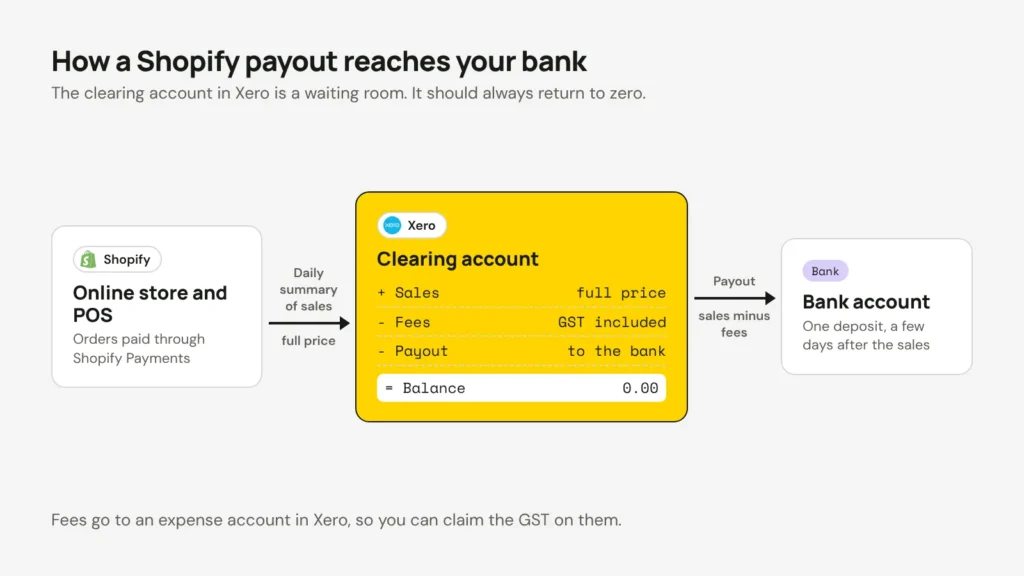
- Shopify says GST at 10% “is included in all Shopify Payments processing fees”. Record the fees so you can claim that GST.
- The monthly tax invoice for those fees is in Settings → Payments → View payouts → Documents. Only the store owner can see it. It appears on the 5th of the next month.
- Shopify also adds 10% GST to your plan fee. If you’re registered for GST, add your ABN in Settings → Billing → Billing profile. This only changes bills after you add it.
Try it with one of your own payouts. Put in the sales and the number of orders, then choose your plan.
Australian online cards through Shopify Payments, at Shopify's Australian rates (October 2026). Refunds, chargebacks, international cards and other payment providers change the numbers. Check how to treat the GST with your accountant.
For help with the GST maths, see my guide to working out an ex-GST price. Ask your accountant how GST should be recorded in your own books.
Use A2X or Link My Books when you grow
Xero’s app works well for one Shopify store with simple products. Two paid tools are popular when things get busier. Both make one entry in Xero for each payout, so every entry matches one bank deposit.
- A2X starts at US$29 a month for up to 200 orders. Cost of goods (what you paid for the products you sold) starts on the US$45 plan. A2X says most of its prices go up on 14 November 2026.
- Link My Books sets its price by your sales, in Australian dollars. It has a 14-day free trial with no card needed. It works with every Xero plan except Cashbook.
I’d look at these if you run more than one store. They also help if your accountant wants cost of goods in Xero. Otherwise, the free app is a good place to start.
Know when you need a custom integration
Ready-made apps move money into Xero. They don’t run the rest of your business. Xero’s Shopify app doesn’t list stock or products among the things it syncs. Xero sells a separate product for that, Xero Inventory Plus, with its own Shopify connection.
A custom integration (a connection built just for your business) is worth it when:
- Stock levels must match in Shopify, Xero and your warehouse or shop.
- Trade customers need a proper Xero invoice for each order, with payment terms.
- Several stores or systems send data to the same Xero account.

Plan for Xero’s limits too. Apps talk to Xero through its API, as I explain in what an API is. Xero allows 60 requests a minute and 5,000 a day for each business. A busy store has to group its updates, or it can hit that limit before the day ends.
Check it after the first month
- Match your first few payouts in Xero. Sales minus fees should equal each bank deposit, to the cent.
- Check that the fees are recorded so you can claim the GST.
- Compare Shopify’s sales report with Xero for the month. A small gap usually means a refund went somewhere unexpected.
- Ask your accountant to look it over before your next BAS.
If you’d rather not set this up yourself, we can help. We build Shopify and Xero integrations, from the free app set up properly to a full custom sync. Either way, tax time gets a lot calmer.
Opens in a new tab


Comments
No comments yet. Questions, fixes and better ways are all welcome.